Appearance
My action items
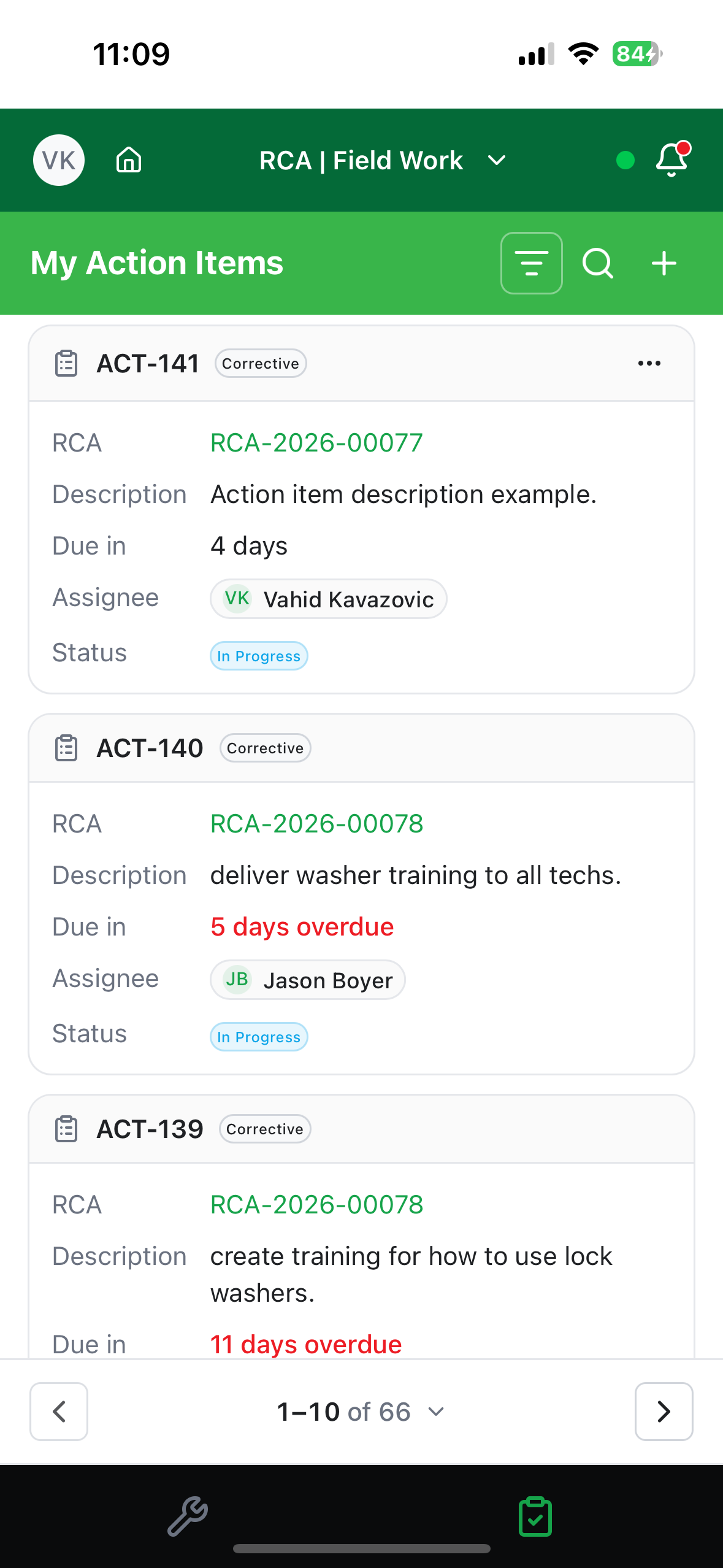
Action items are the tasks that come out of a Level 2 RCA. The My Action Items tab shows the ones you're involved in — either because you own them or because they're assigned to you.
Finding an action item
Each card shows the description, when it's due, who it's assigned to, and its status. Overdue items show their due text in red — for example "3 days overdue".
Statuses
| Status | Meaning |
|---|---|
| In Progress | Being worked on. |
| Pending Approval | Submitted; waiting on the RCA owner. |
| Completed | Approved and done. |
| Rejected | Sent back — needs more work. |
| Cancelled | No longer needed. |
Filters
| Filter | Options |
|---|---|
| My project role | All · Owner · Team member |
| My action role | All · Owner · Assignee · Owner & Assignee |
| Action type | All · Corrective · Non-corrective |
| Action state | All · Open · Closed |
| Action status | Depends on state — open shows In Progress and Pending Approval; closed shows Completed, Rejected, Cancelled |
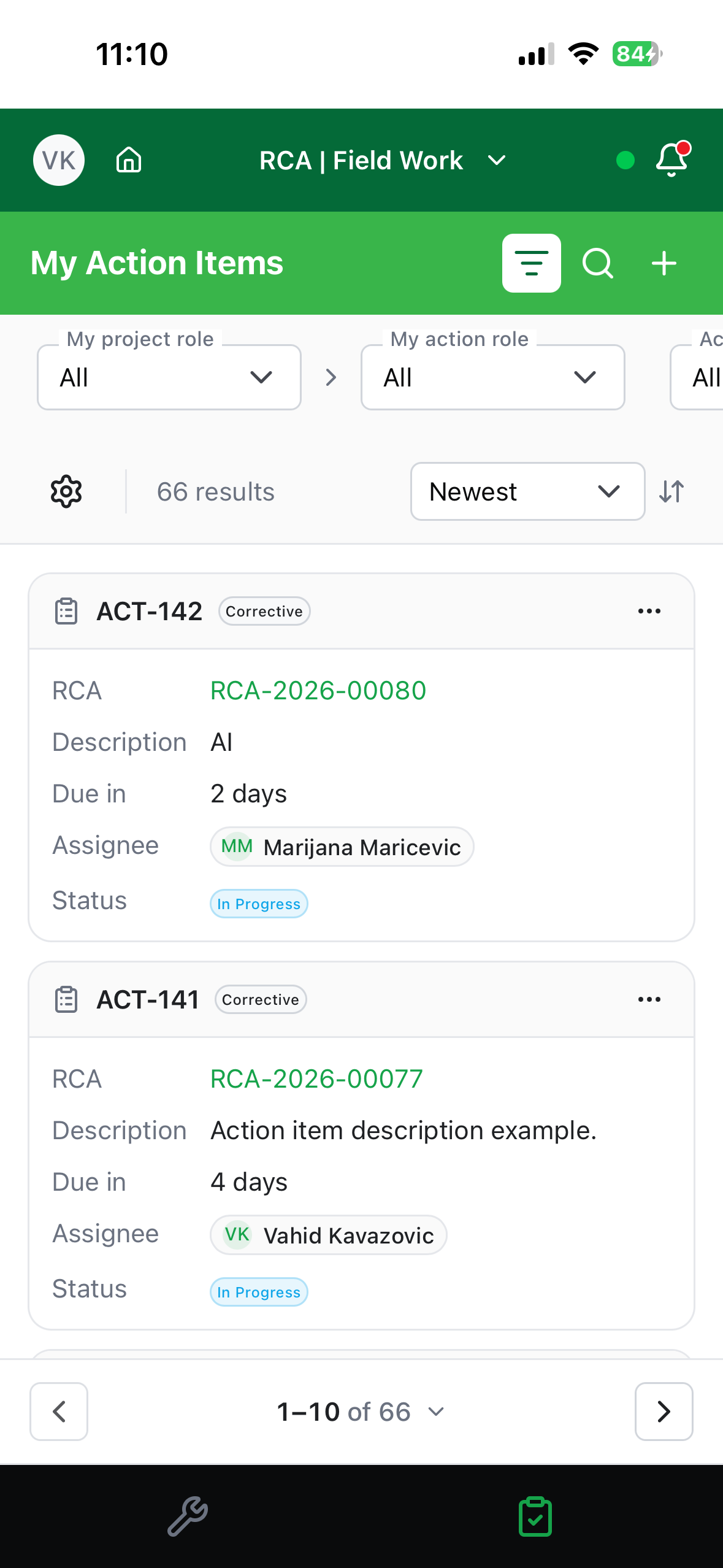
Sort by Due in, Due (latest), Newest, or Oldest, and use Customize View to choose which details appear on the cards.
Creating an action item
- Tap +.
- Pick the RCA the action belongs to.
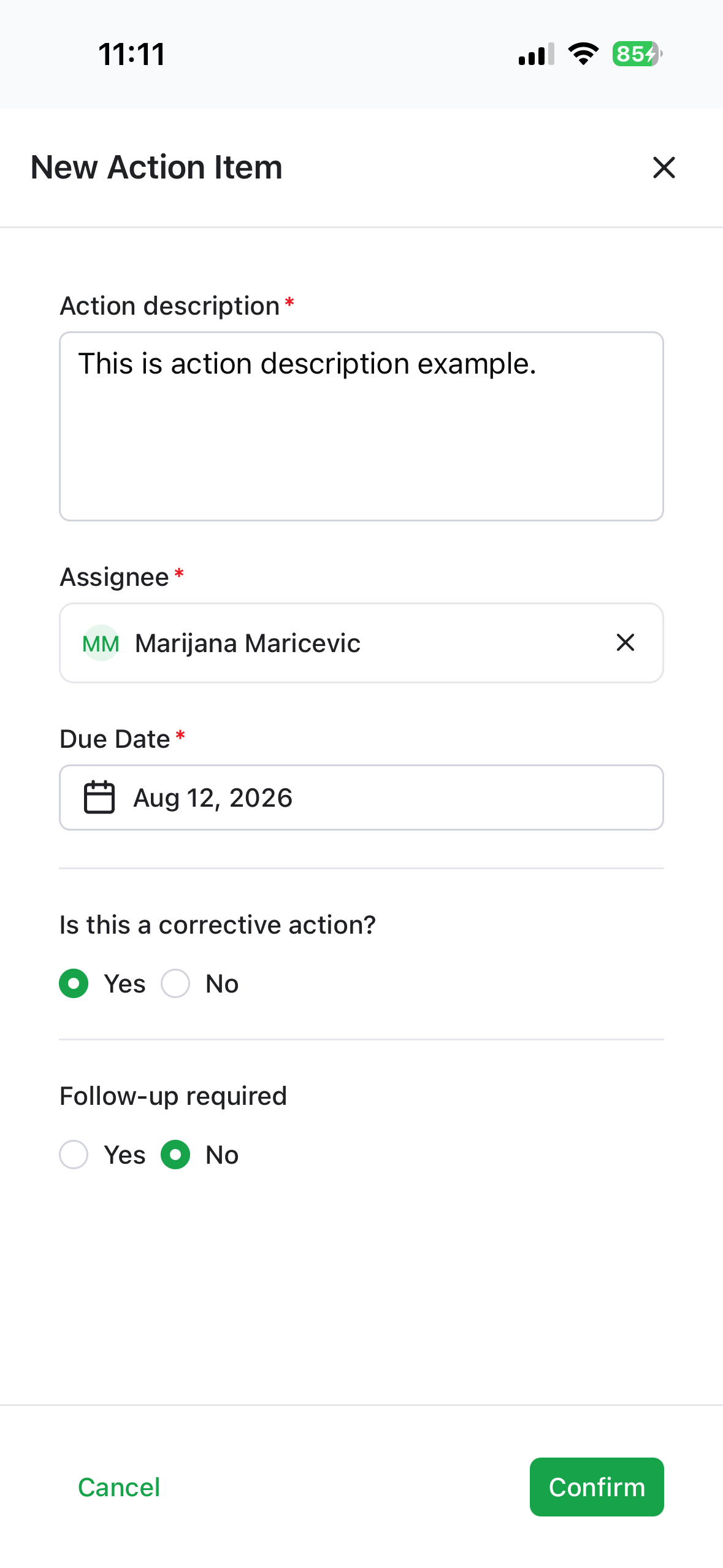
- Fill in the form:
| Field | What to enter |
|---|---|
| Is this a corrective action? | Corrective actions fix the root cause. |
| Description | What needs doing (up to 500 characters). |
| Assignee | Who does the work. |
| Due Date | When it's needed. |
| Follow-up required | Whether a follow-up is needed, and when. |
"You are not assigned to any open Level 2 RCAs."
Action items only exist on Level 2 RCAs that are still open. If the picker is empty, there's no RCA to attach one to.
Corrective actions need a proposed solution first
If you see "You need a proposed solution before adding a corrective action.", open the RCA's Solution tab and summarize the proposed solution — then come back.
Doing the work
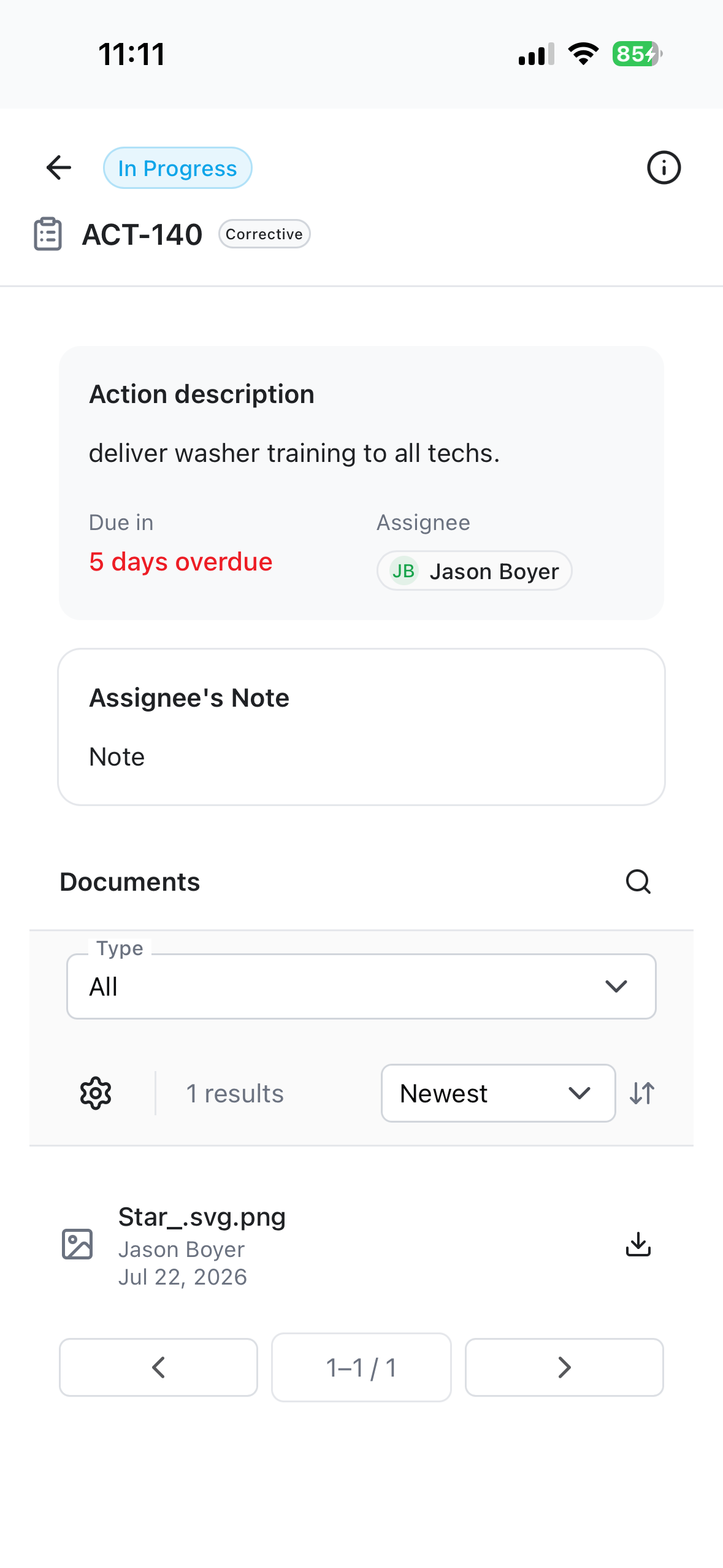
Open an action item to see its details, then:
- Carry out the task.
- Add an Assignee's Note describing what you did.
- Attach documents or photos as evidence — tap Upload and take a photo or pick a file.
The note and attachments are yours to manage as the assignee, up until the item is submitted.
Approvals happen on the desktop
Field-Work is where the work gets recorded. Approving or rejecting a submitted action item is done in the RCA desktop app.
Editing and cancelling
From the ⋮ menu:
- Edit — the owner can change the details while the item is In Progress or Rejected.
- Cancel action — marks it cancelled, after a confirmation.
Once an item is Pending Approval, Completed, or Cancelled, it's locked.
Troubleshooting
| Problem | What to do |
|---|---|
| The RCA picker is empty | You're not on any open Level 2 RCA. Action items can't be created on Level 1. |
| "You need a proposed solution before adding a corrective action." | Summarize the proposed solution on the RCA's Solution tab first. |
| You can't edit an action item | Only the owner can edit, and only while it's In Progress or Rejected. |
| You can't add a note or attachment | The note and documents are the assignee's, and only before the item is submitted for approval. |
| An item is rejected | Read the owner's comment, do the extra work, update your note, and it goes back for approval. |
| Your change hasn't appeared for colleagues | It may still be waiting to sync — see Working offline. |