
Appearance
My RCAs
The My RCAs tab is where you create analyses and do the investigation work. It shows the RCAs you're involved in — not every RCA at your site.
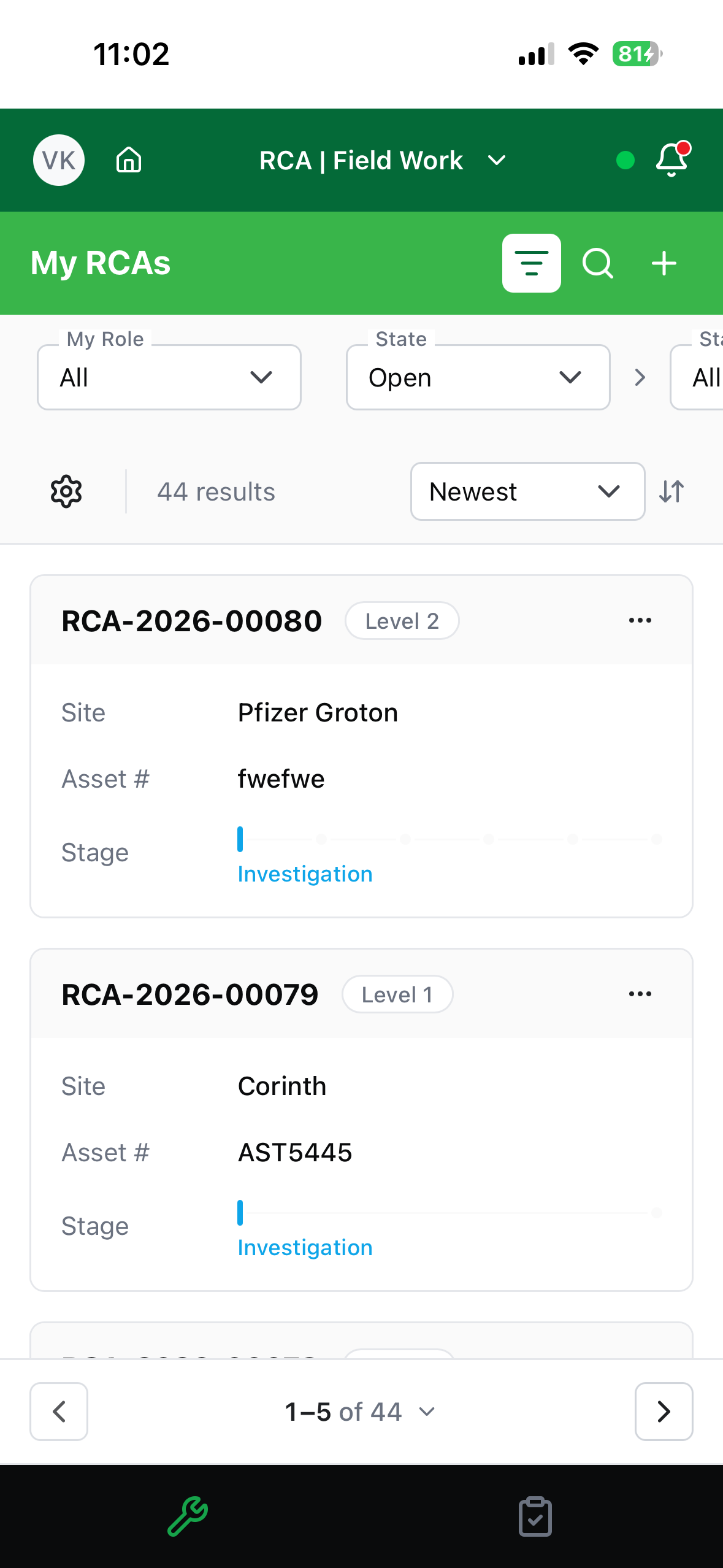
Finding an RCA
Each RCA appears as a card showing its ID, whether it's Level 1 or Level 2, the Site, the Asset #, and a progress bar for the current stage.
- Search — tap the magnifying glass and type.
- Filters — tap the filter icon to narrow the list:
| Filter | Options |
|---|---|
| My Role | All · Owner · Contributor · Reviewer · Approver |
| State | All · Open · Closed |
| Stage | Depends on State — open RCAs show Investigation, Initial Review, Formal Approval, Corrective Actions, Final Review; closed ones show Completed, Cancelled, Validated |
- Sort — Latest update · Newest (the default) · Oldest · Name A-Z · Name Z-A.
- Customize View — turn card labels on or off, and choose which of ID, Site, Asset #, and Stage appear on the cards.
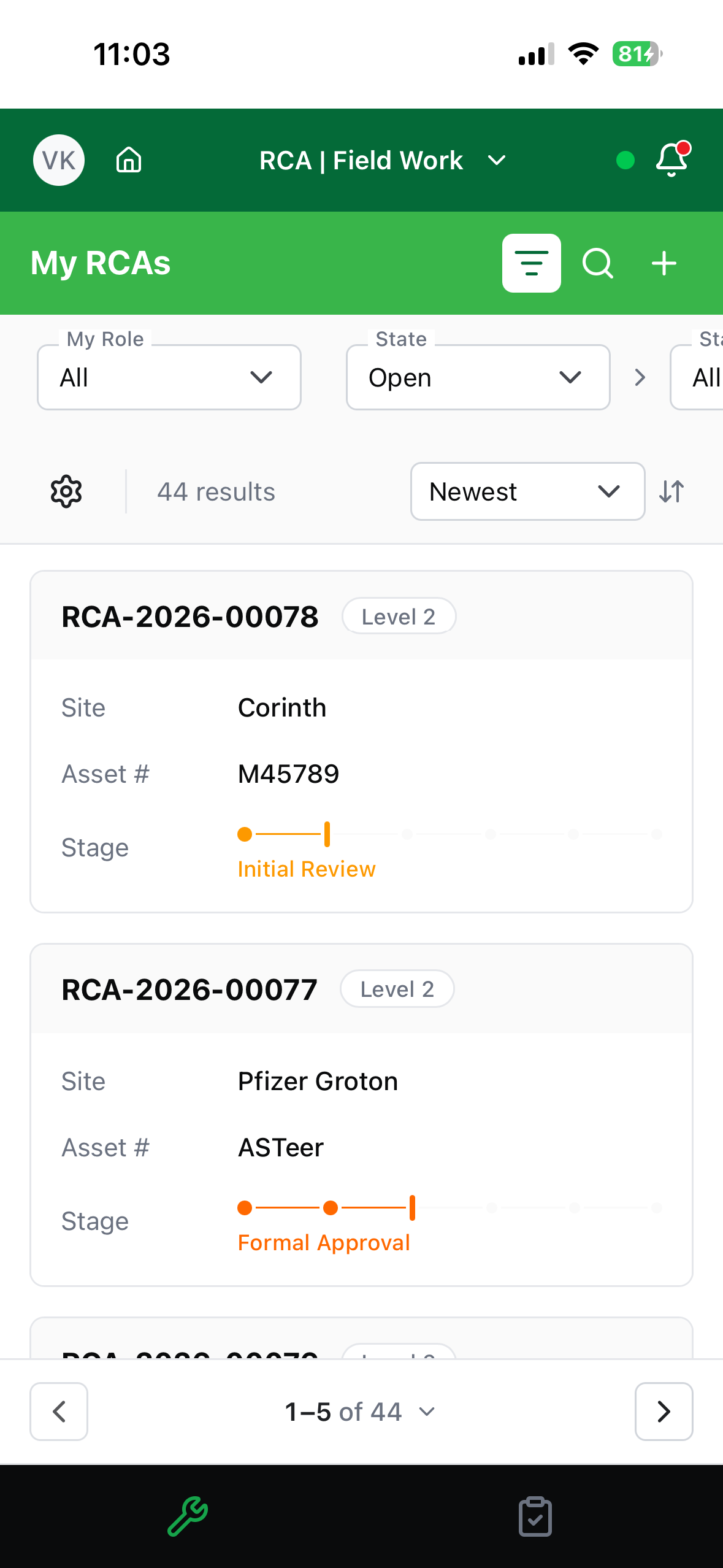
A card that says "Pending sync"
An RCA you created offline doesn't have its official ID yet — the system assigns that when it syncs. Until then the card shows Pending sync instead. Everything still works.
Level 1 or Level 2?
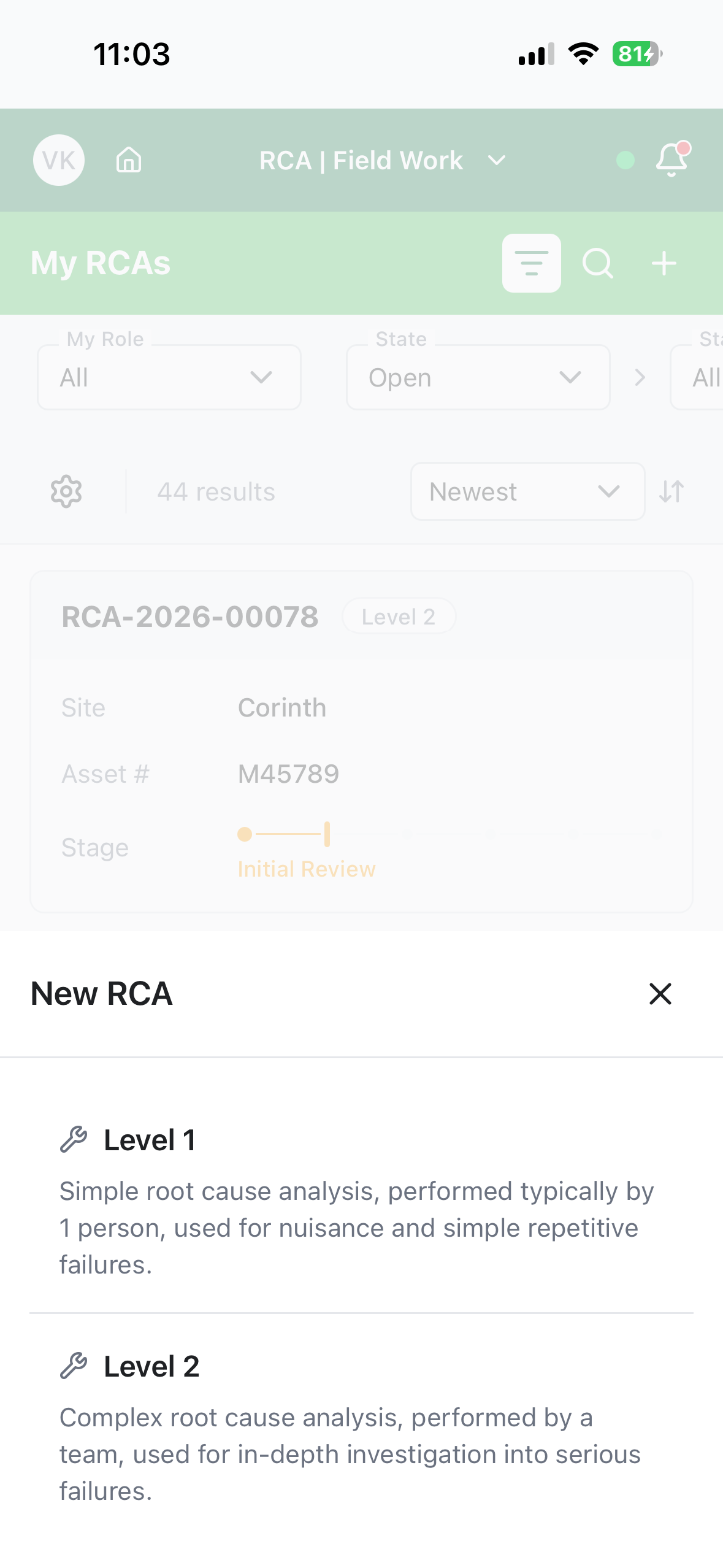
Tap + to start a new RCA and pick a level:
| Level | When to use it |
|---|---|
| Level 1 | Simple root cause analysis, typically done by one person — nuisance and simple repetitive failures. |
| Level 2 | Complex root cause analysis, done by a team — in-depth investigation into serious failures. |
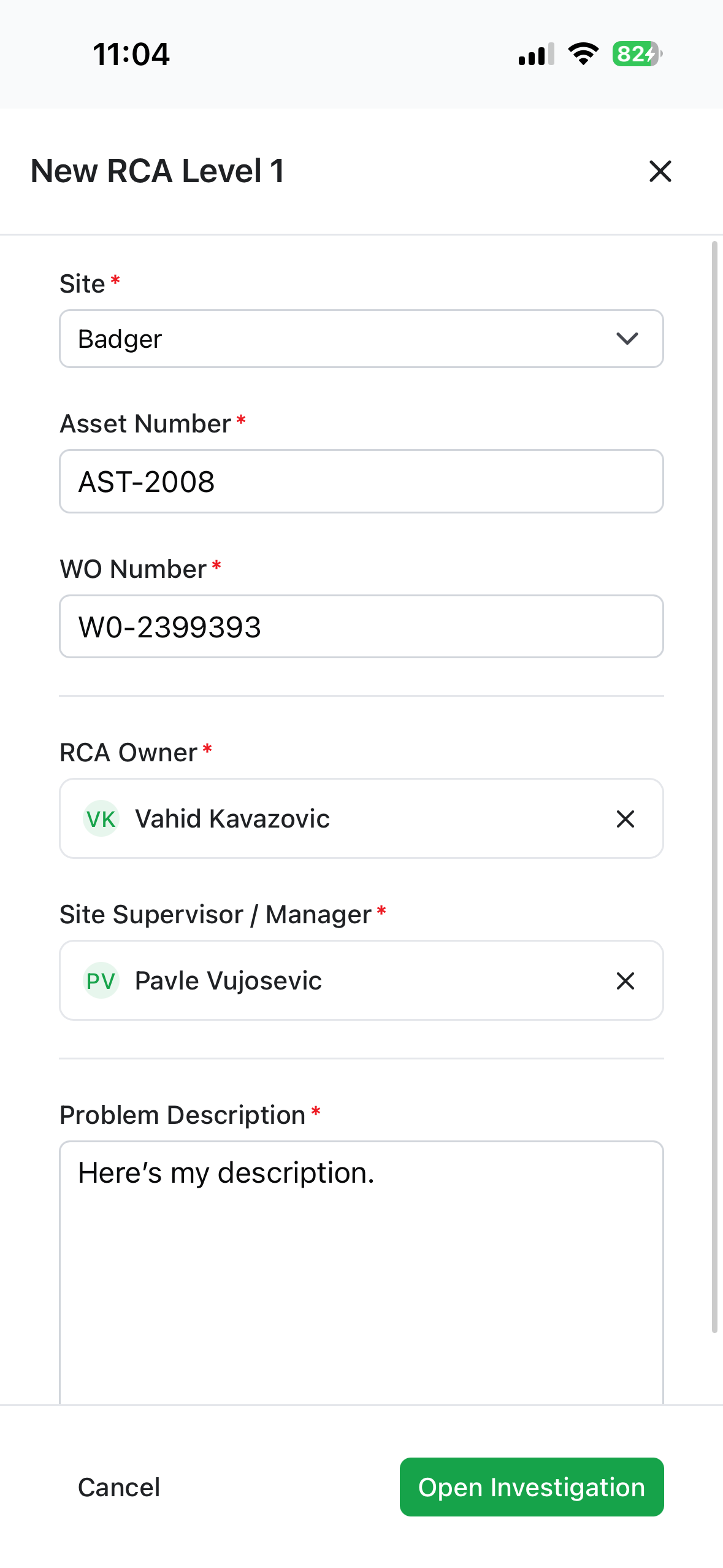
Creating a Level 1 RCA
Fill in the form:
| Field | What to enter |
|---|---|
| Site | Where it happened. |
| Asset Number | The asset involved. |
| WO Number | The related work order. |
| RCA Owner | Who owns the analysis. |
| Site Supervisor / Manager | The responsible supervisor. |
| Problem Description | What went wrong. |
Tap Open Investigation — this saves the RCA and takes you straight into the investigation.
Running a Level 1 investigation
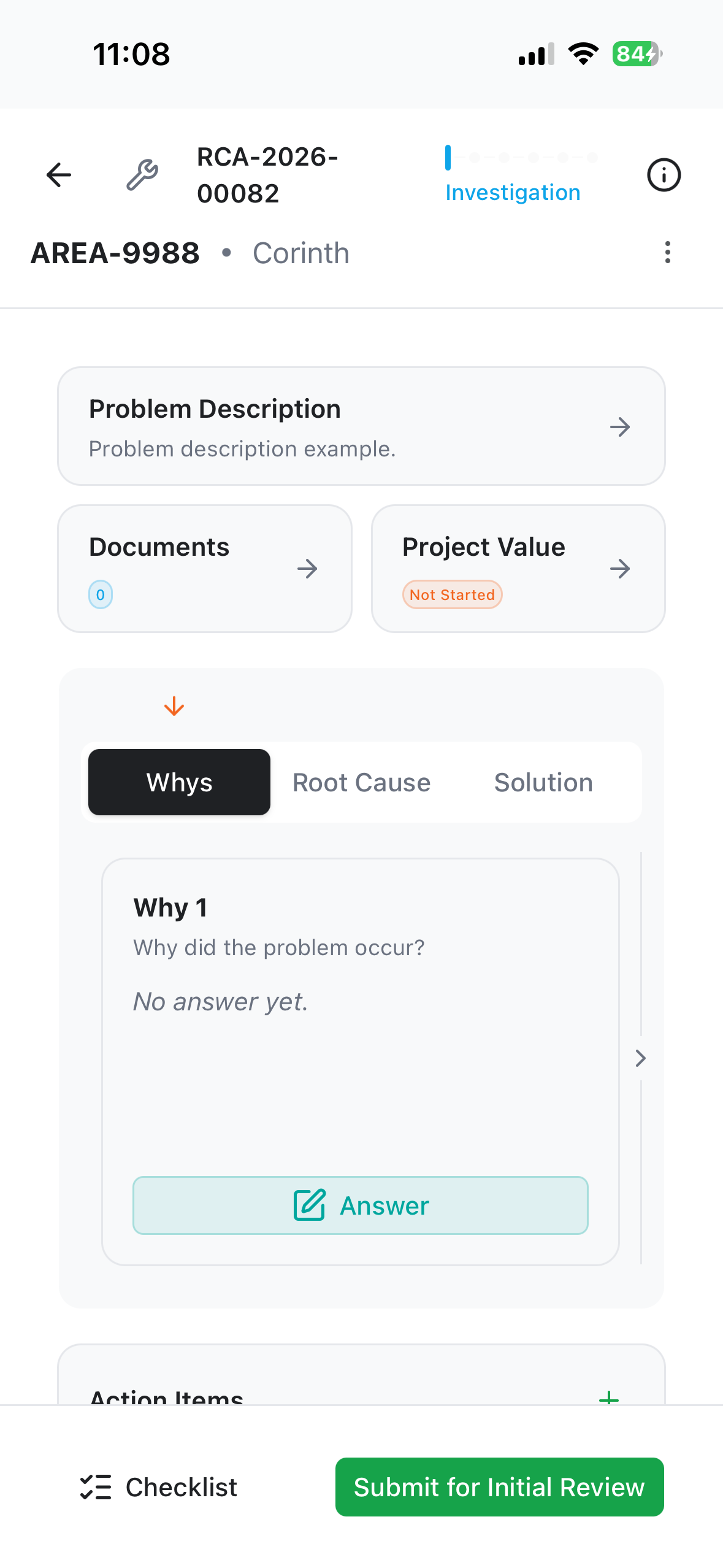
The investigation has two tabs: Whys and Root Cause. Small indicators above the tabs show what's done and what to do next.
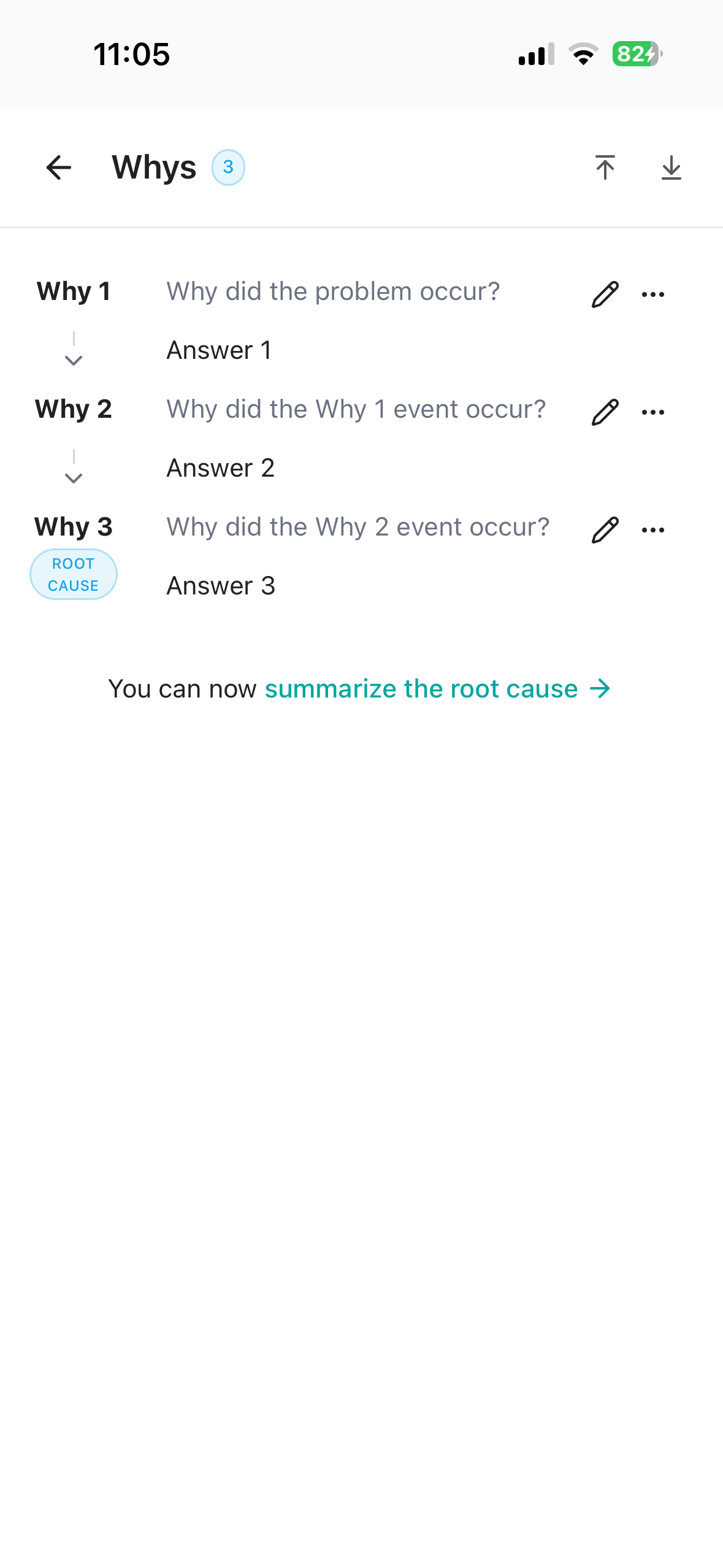
The 5-Why chain
The Whys are a row of cards you swipe through sideways. Each answers the question that came before it.
- Tap the first card — it asks "Why did the problem occur?"
- Write your Answer.
- Answer "Is this the root cause?" — Yes or No.
- If it's not, tap Add Why for the next one, which asks "Why did the Why 1 event occur?", and keep going.
Marking an answer as the root cause puts a Root cause badge on it. You can edit or delete any Why later.
Summarizing the root cause
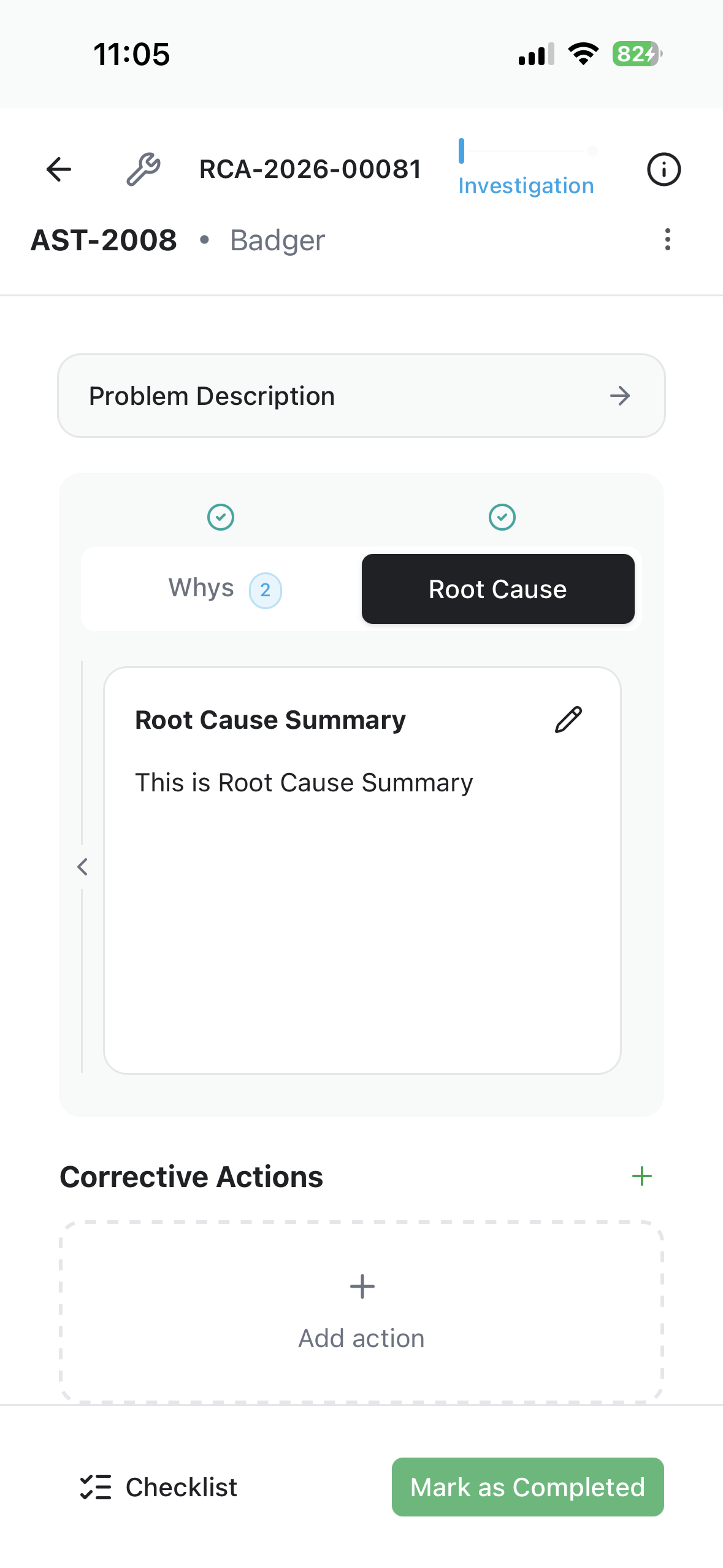
Once a Why is marked as the root cause, open the Root Cause tab and write the summary. Both steps are needed — marking and summarizing.
Corrective actions
Below the tabs, add the actions that fix the root cause. This section stays locked until the root cause is both marked and summarized — until then it explains why:
The root cause must be identified by marking a Why answer as such (Whys tab) and summarized (Root Cause tab) before listing corrective actions.
Completing it
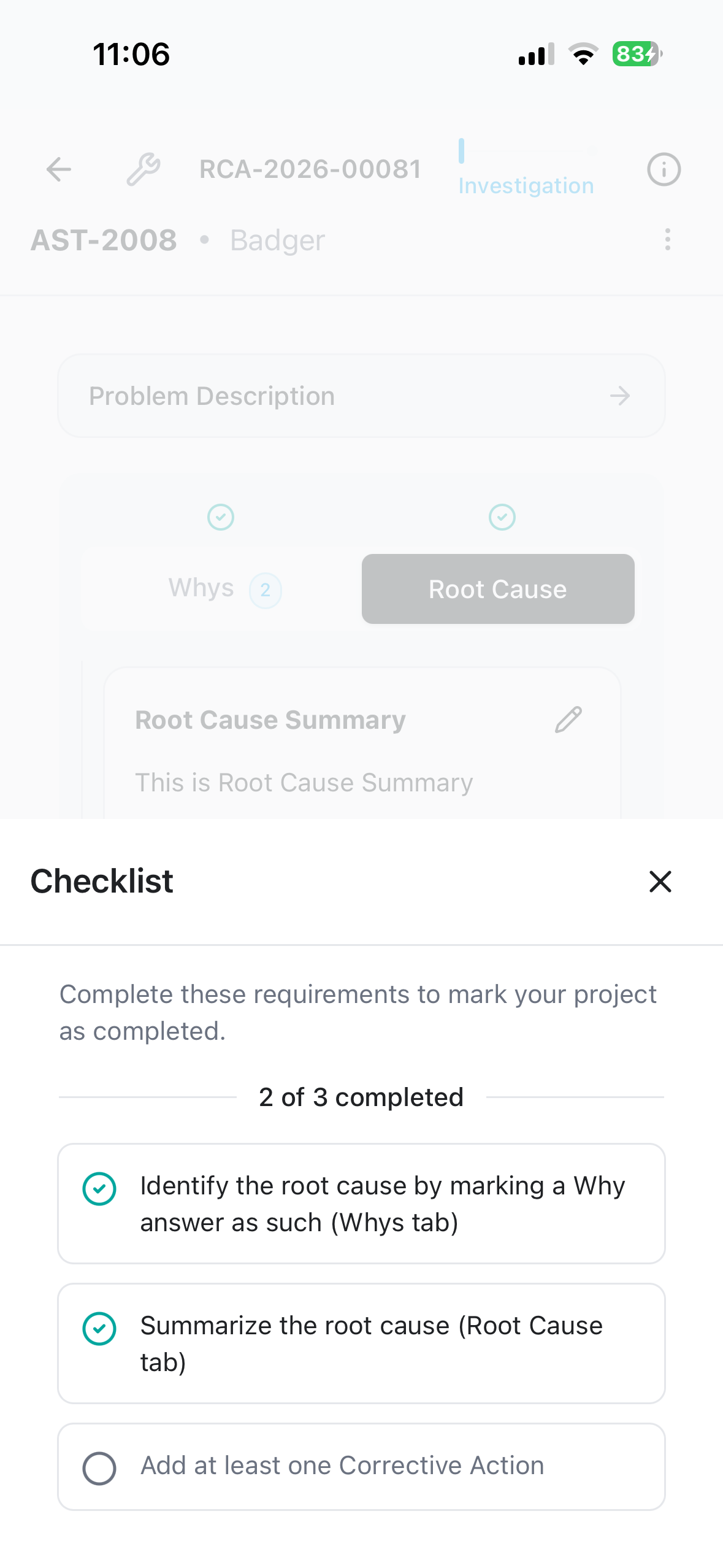
Tap Checklist in the footer to see what's left — it tracks three things:
- Identify the root cause by marking a Why answer as such
- Summarize the root cause
- Add at least one Corrective Action
When all three are done, Mark as Completed becomes available. A completed RCA is read-only, but it can be Reopened from the card menu.
Creating a Level 2 RCA
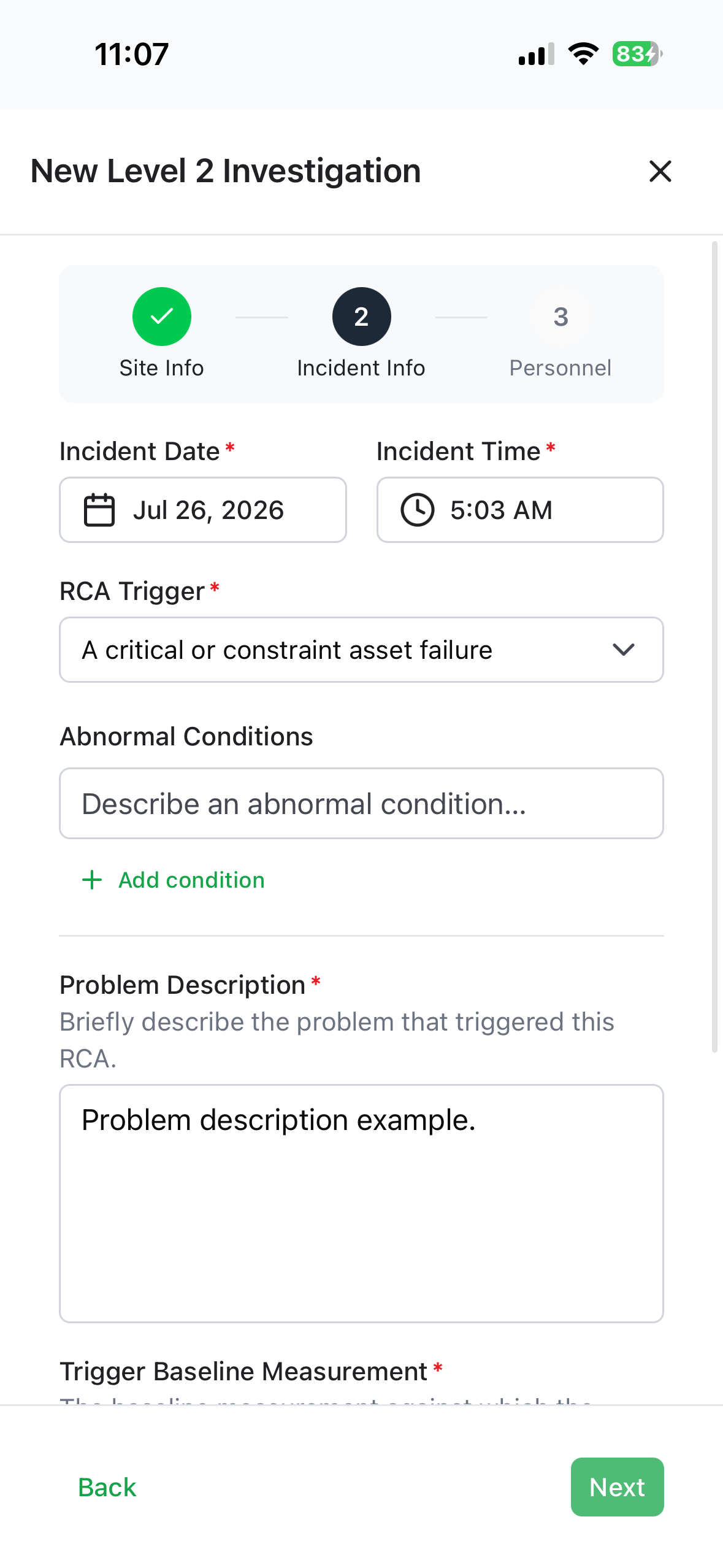
Level 2 uses a three-step wizard: Site Info → Incident Info → Personnel.
Site Info — RCA Number, WO Number, Site, Application Type (Process or Facilities), Area, Asset Number, Model Number, OEM Asset Description.
Incident Info — the incident date and time (shown in your timezone), the RCA Trigger (for example "An asset with a Mean Time Between Failure (MTBF) of less than:" or "A top 5 asset failure from the monthly report" — some triggers need a threshold and unit), any Abnormal Conditions, the Problem Description, the Trigger Baseline Measurement, and any Immediate Corrective Action already taken.
Personnel — the Owner, the Team Members, and the approvers: Area Program Manager, Site Manager, Site Supervisor, Reliability Engineer, and Reliability Planning Analyst.
Tap Next through the steps, then Open Investigation.
Required before you can continue
An owner, at least one team member, an area program manager, and a site manager are all required.
Running a Level 2 investigation
Level 2 works like Level 1 but adds a third tab and two extra sections.
Whys and Root Cause behave exactly as in Level 1. The Solution tab is where you summarize the proposed solution once the root cause is written up.
Documents — attach photos and files to the RCA. See documents.
Project Value — declare whether the project has measurable value, choose the type (Cost Savings, Downtime Avoidance, Catastrophic Avoidance, Performance Improvement, Quality Improvement, EHS Avoidance, Customer Satisfaction), and record a dollar amount if it's cost savings.
Action items — the RCA's action items appear inside the investigation. See My action items.
Submitting for review
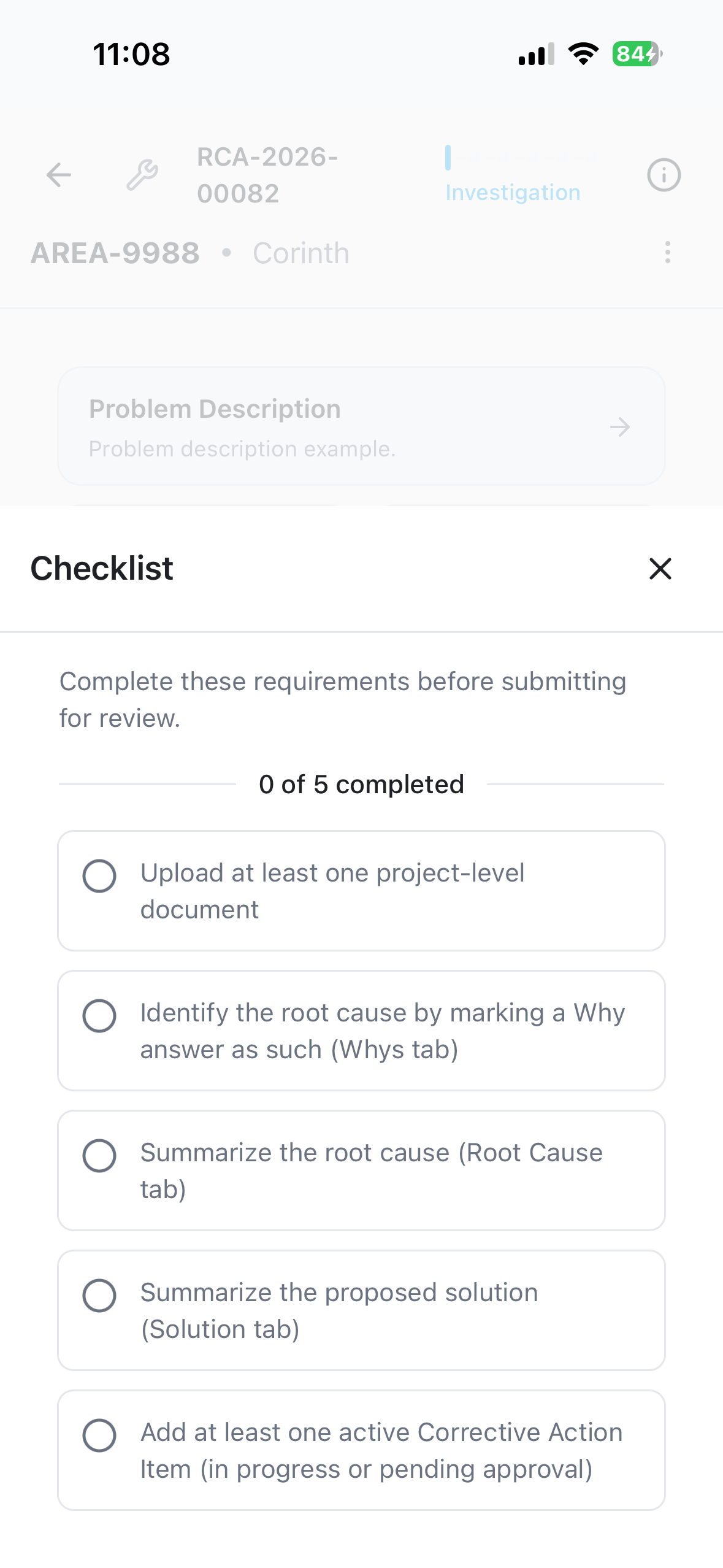
Tap Checklist to see the five requirements:
- Upload at least one project-level document
- Identify the root cause by marking a Why answer as such
- Summarize the root cause
- Summarize the proposed solution
- Add at least one active Corrective Action Item
When they're all met, Submit for Initial Review appears.
After you submit, the RCA is read-only here
Initial Review, Formal Approval, Corrective Actions, and Final Review all happen in the RCA desktop app. You can follow along in Field-Work, but you can't approve, reject, or edit from your phone.
Documents and photos
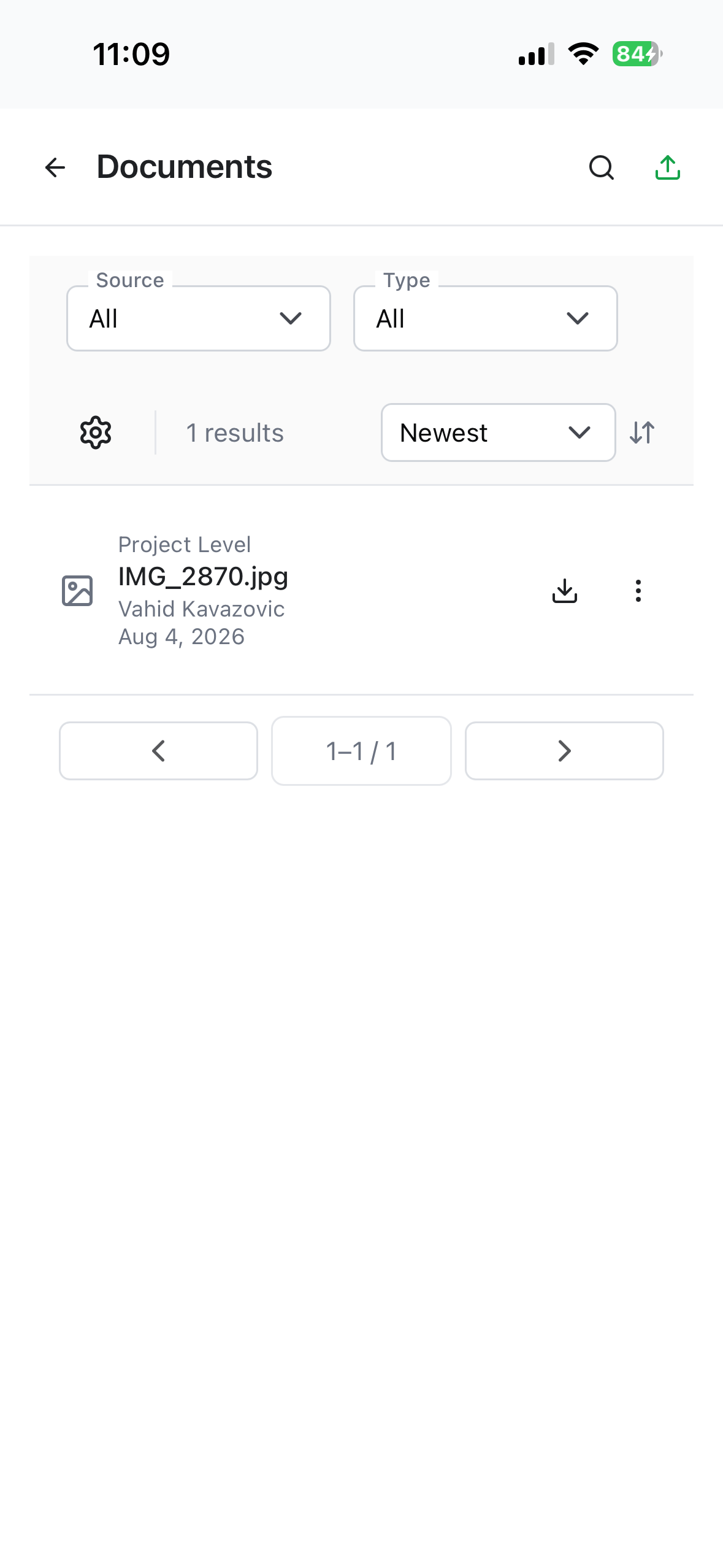
In a Level 2 RCA, open Documents to attach evidence. Tap Upload and your phone offers its usual choices — take a photo, or pick an existing file.
Photos are shrunk automatically before they're stored, so they don't eat your data or your device storage.
You can search and filter documents, switch between list and grid, preview a file in the app, and Rename, Replace, Delete, or Download it.
Some document actions need a connection
Renaming, replacing, and deleting an already-uploaded document only work online — you'll see "This action requires an online connection." if you try offline. Uploading works offline, except for files over 10 MB.
Cancelling and reopening
From a card's ⋮ menu:
- Edit — while the RCA is still in investigation.
- Cancel — administrators only. A reason is required and recorded for audit.
- Reopen — brings a completed RCA back.
Troubleshooting
| Problem | What to do |
|---|---|
| The corrective actions section is locked | Mark a Why as the root cause and summarize it on the Root Cause tab. |
| Mark as Completed is greyed out | You need a summarized root cause and at least one corrective action. Tap Checklist. |
| Submit for Initial Review isn't there | Open Checklist — all five items must be done, including a project-level document. |
| You can't edit an RCA | Editing is limited to the investigation stage, and to the owner or an administrator. Once submitted for review, it's read-only here. |
| You can't cancel an RCA | Cancelling is administrator-only. |
| A card shows "Pending sync" | It hasn't reached the server yet. Check Working offline. |
| Rename or replace won't work | Those need a connection. |