
Appearance
Getting started with Field-Work
This guide covers signing in on your phone, adding Field-Work to your home screen, and finding your way around.
Before you start
You need an Amentum account that has already been invited to RCA — Field-Work uses the same account and the same sign-in as the RCA desktop app. If you can't sign in to RCA on a computer, you won't be able to sign in here either.
You'll also need Okta Verify on your phone to approve the sign-in.
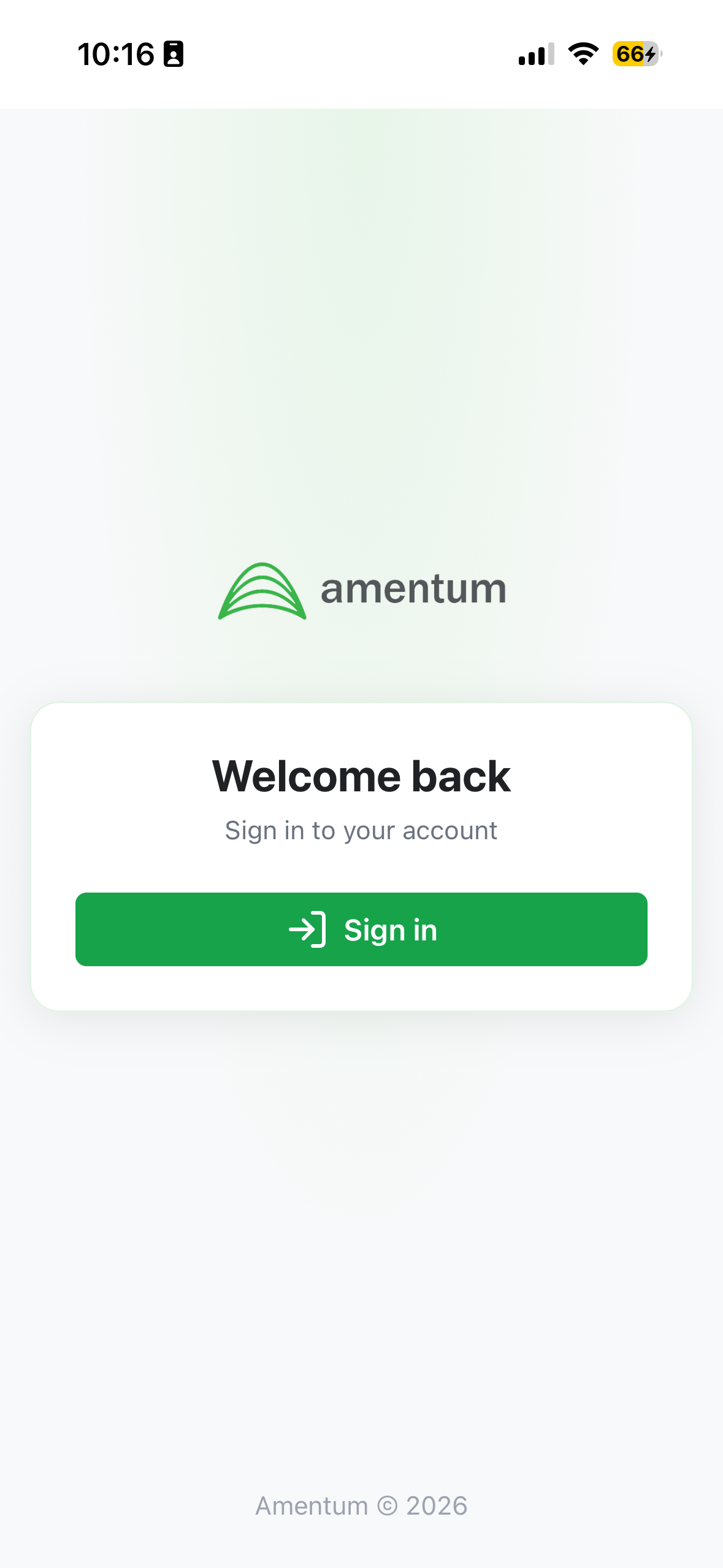
Step 1 — Open Field-Work and sign in
- Open Field-Work in your phone's browser.
- Select Sign in.
- Enter your email and password on the Okta screen.
- Approve the Okta Verify prompt.
Step 2 — Add it to your home screen
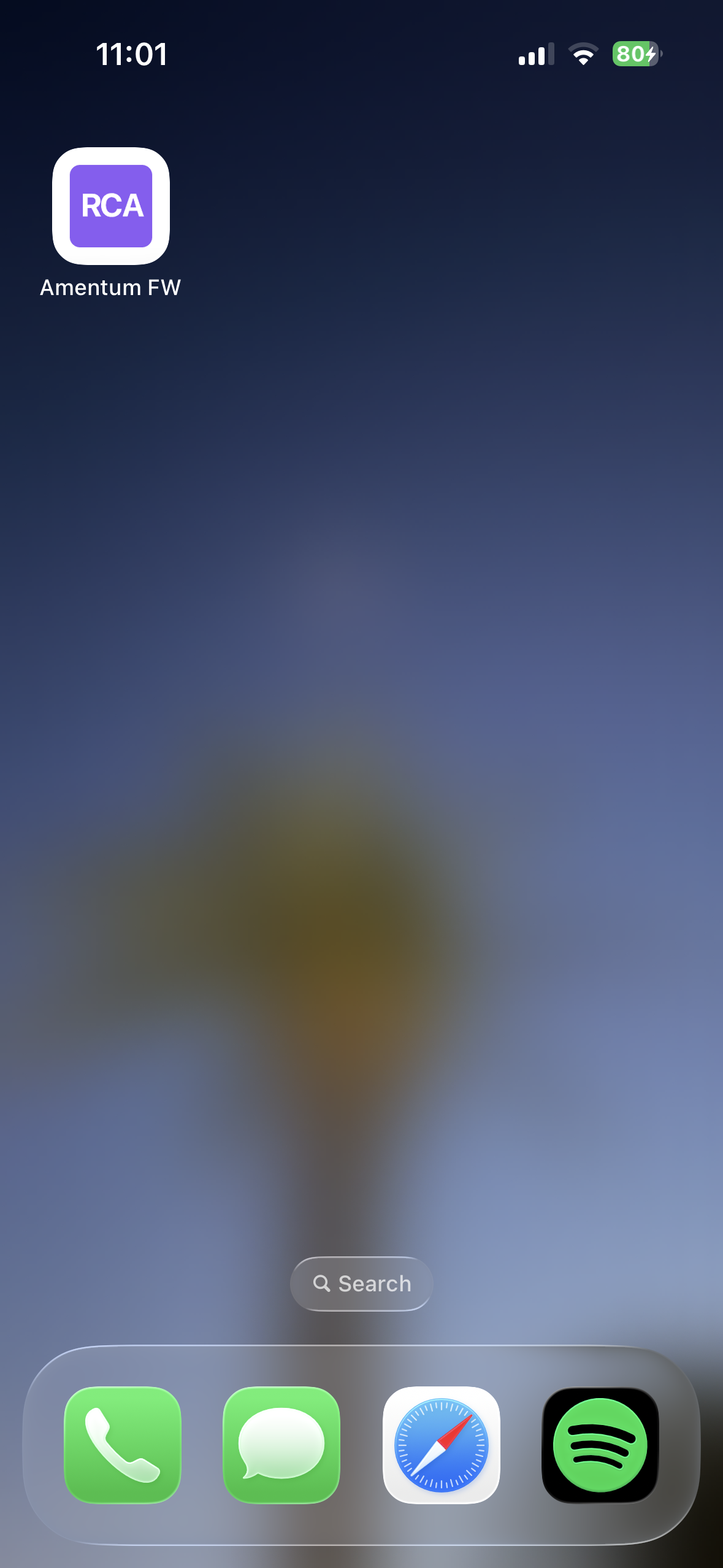
Field-Work is designed to be installed on your phone. Once added, it opens full-screen without browser bars, and it keeps working when you lose signal.
iPhone (Safari)
- Tap the Share button.
- Tap Add to Home Screen.
- Tap Add.
Android (Chrome)
- Tap the ⋮ menu.
- Tap Add to Home screen (or Install app).
- Tap Install.
Worth doing before you head out
Install it while you still have a good connection. The first launch has to download your data (see the next step) — that's not something you want to be doing on a weak signal.
Step 3 — First-time setup
The first time you sign in, Field-Work downloads your RCAs, action items, sites, and colleagues onto the device. You'll see First-time setup — Downloading your data… while it works.
This only happens once, and it needs a connection. If it fails you'll see Cannot start — First sync requires a connection, with a Retry button. Get back into signal and retry.
After this, Field-Work works offline. See Working offline.
Finding your way around
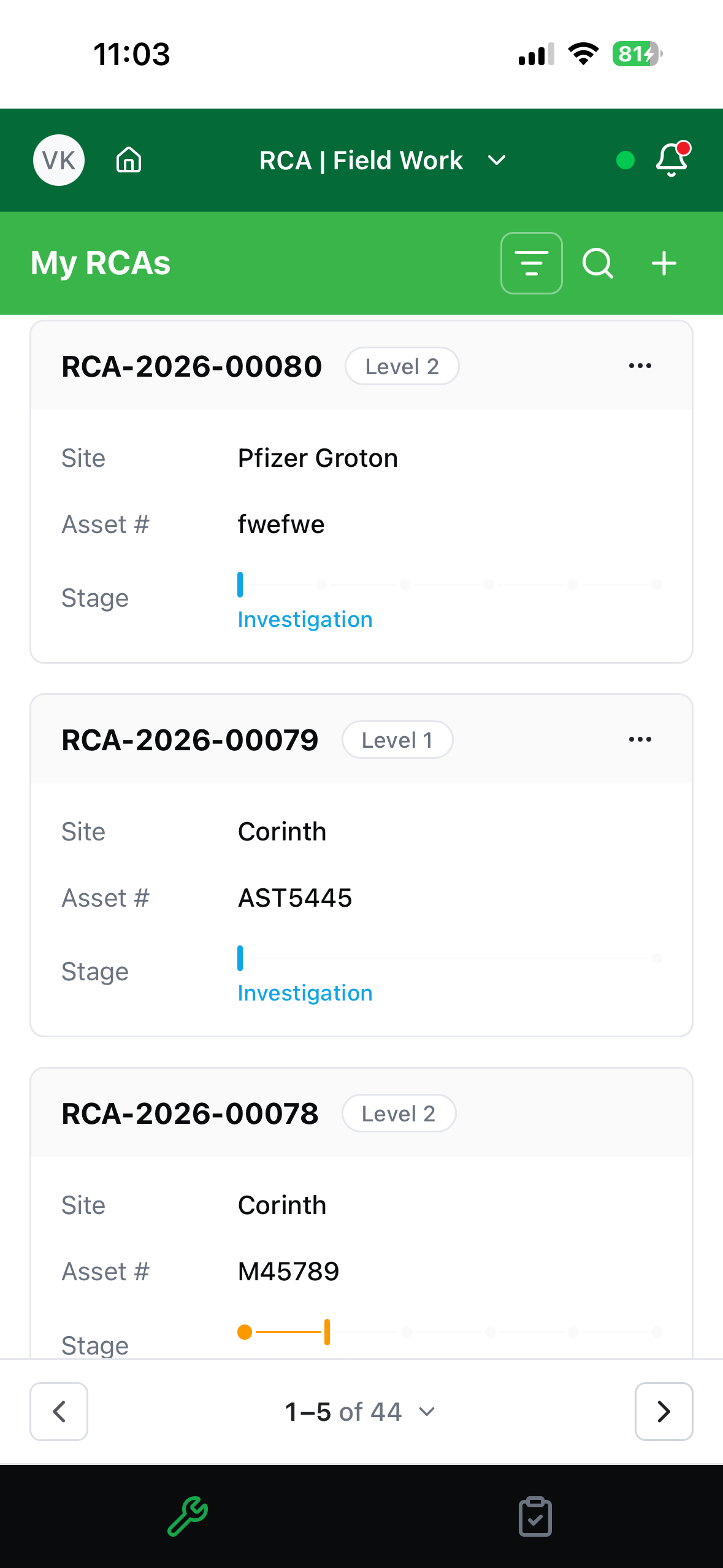
The two tabs at the bottom are the whole app:
| Tab | What's there |
|---|---|
| 🔧 My RCAs | The analyses you're involved in — My RCAs |
| ☑️ My Action Items | The tasks assigned to you — My action items |
The green header, from left to right:
- Your initials — opens your profile, where you can switch between Light, Dark, and Auto appearance, and Sign out.
- House icon — takes you to the App Suite landing page.
- "RCA | Field Work" — tap to switch between the suite's apps.
- Connection badge — whether you're online, and how many changes are waiting to sync.
- A red
!badge — appears only when something needs your attention. Tap it to go to Sync & troubleshooting. - Bell — your notifications, with a count of unread ones.
Notifications
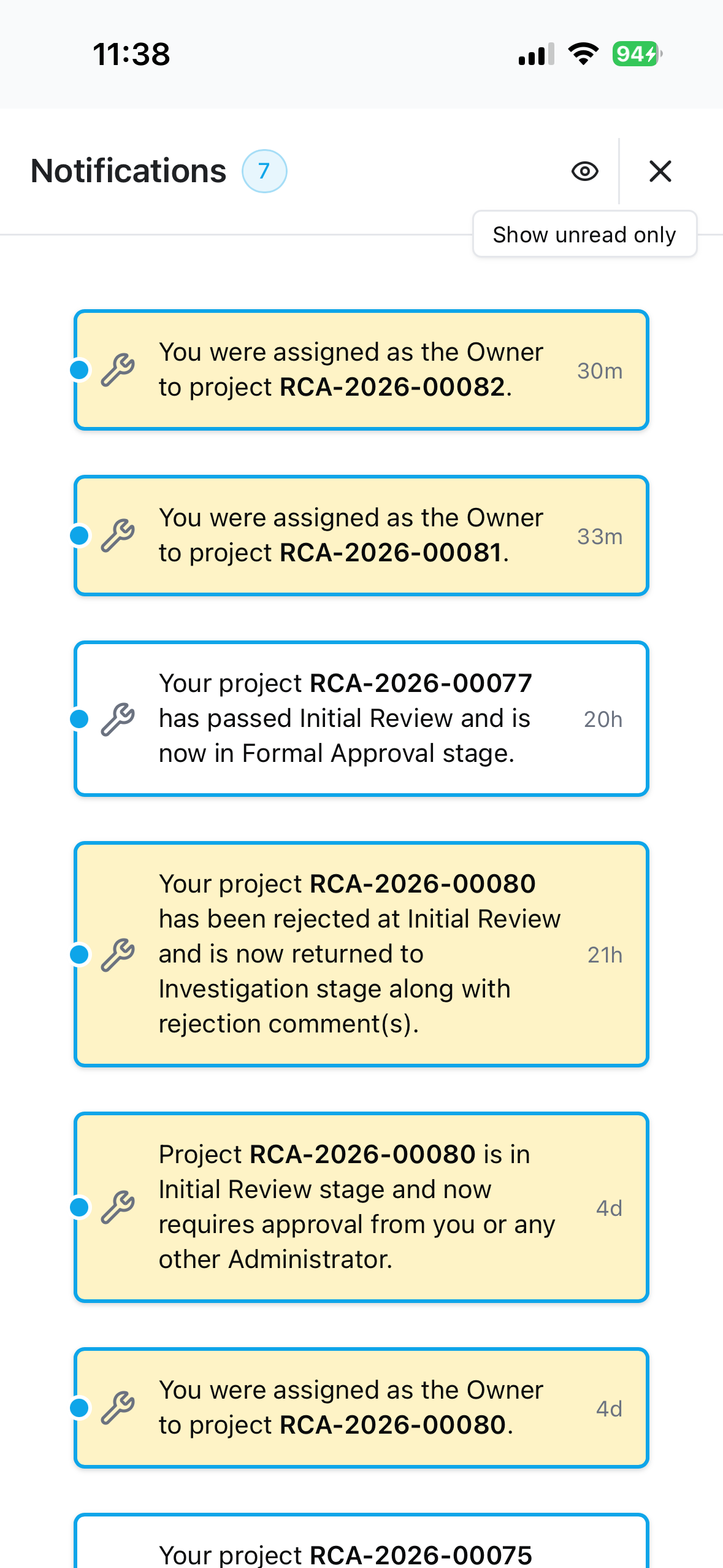
Tap the bell to see notifications about your RCAs and action items. Tap one to jump straight to the item it refers to — this works offline too.
Use the eye icon to switch between Show unread only and Show all. Notifications mark themselves as read once you've had them on screen for a moment, so the unread count takes care of itself.
Unread notifications carry a blue dot, and ones that need something from you — an approval, a rejected RCA coming back to you — are highlighted. Each shows how long ago it arrived (30m, 20h, 4d).
What's next
- My RCAs — create and run an analysis
- Working offline — what happens when you lose signal
Troubleshooting
| Problem | What to do |
|---|---|
| "Access denied. Please contact your administrator." | Your account isn't set up for RCA. Ask your administrator. |
| "Your session has expired. Please sign in again." | Sign in again — sessions don't last forever. |
| "Cannot start — First sync requires a connection" | The first-time download needs signal. Get back in range and tap Retry. |
| The Okta Verify prompt never arrives | Check that Okta Verify is set up and your phone has a connection. |
| You installed it but it opens in the browser with address bars | Open it from the home screen icon, not from a browser tab or bookmark. |