
Appearance
Getting started with RCA
This guide walks you through getting into RCA for the first time: activating the account you were invited to, and signing in day to day.
Before you start
You need two things:
- An invitation. An administrator invites you from the RCA Users page. Your account must already exist in your organization's Okta directory — only Okta-registered people can be invited. When you're invited, the administrator also sets your role (for example, Approver) and, if relevant, your position.
- Okta Verify set up on your phone. Signing in requires a verification code or push from the Okta Verify app.
Don't have an invitation? Ask your team's RCA administrator to invite you.
Step 1 — Activate your account
- Check your inbox for an email inviting you to RCA. It contains an activation link.
- Click the activation link. It opens the RCA activation page in your browser.
- The activation completes automatically — RCA verifies your invitation and sets up your account.
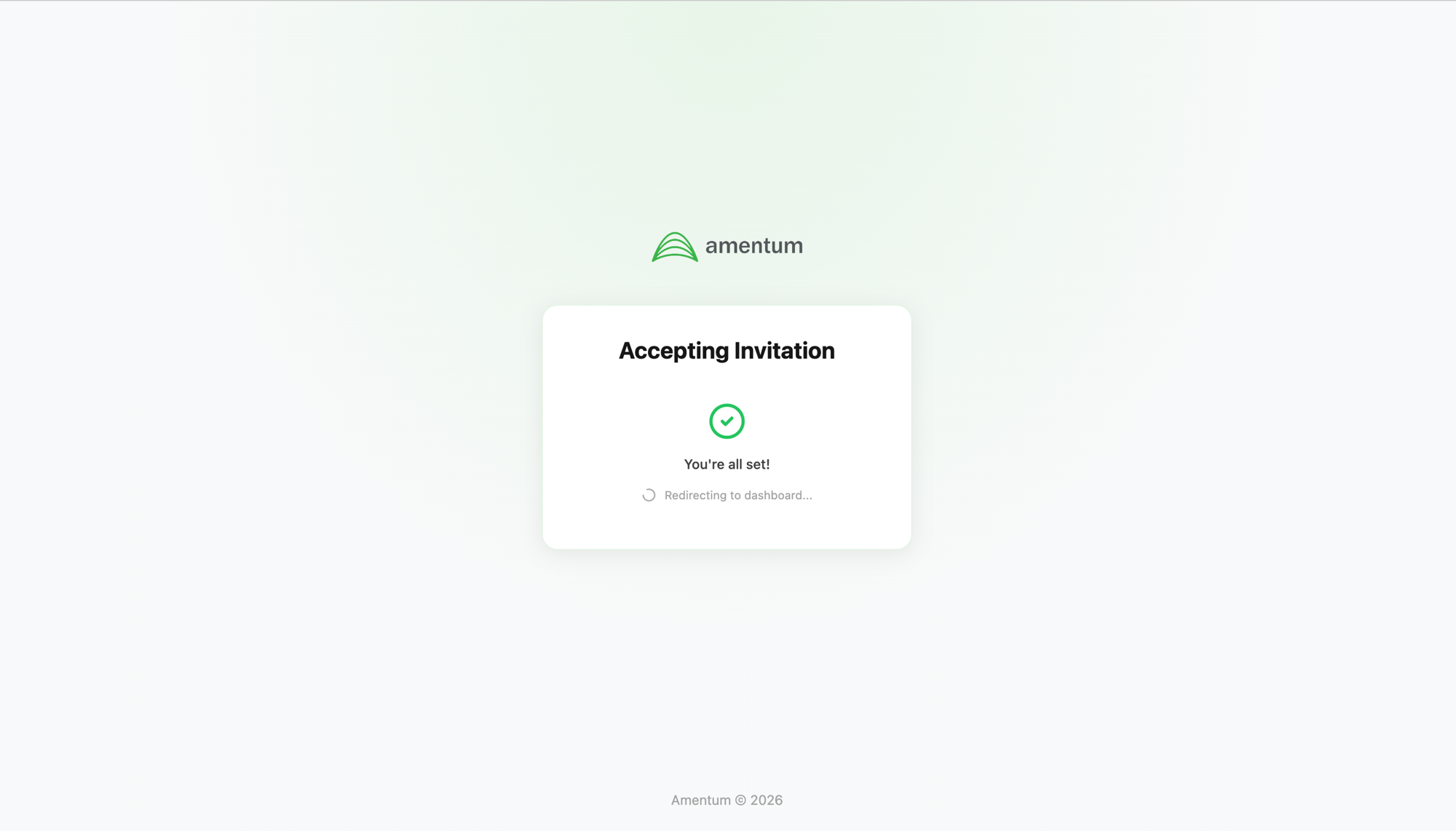
Once your account is active, you're taken into the app.
Already signed in with Okta elsewhere?
If you're already signed in to another app through Okta, activation recognizes it and takes you straight in — you won't need to log in again.
Step 2 — Sign in
For everyday access, sign in through Okta:
- Open RCA and select Sign in.
- Enter your email and password on the Okta login screen.
- Approve the Okta Verify prompt on your phone (a push notification or a 6-digit code). This usually takes just a few seconds.
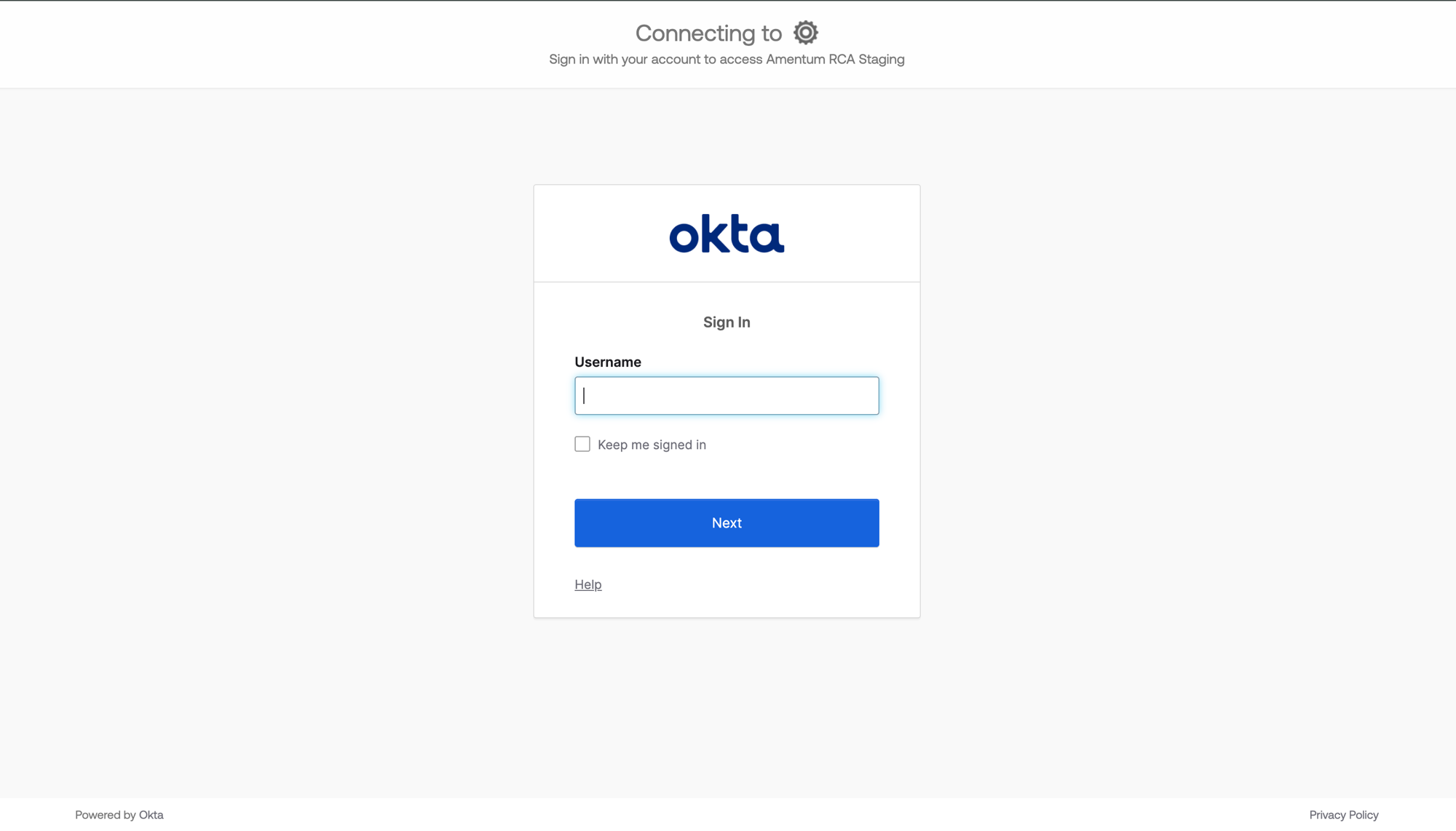
Step 3 — Land on the App Suite home
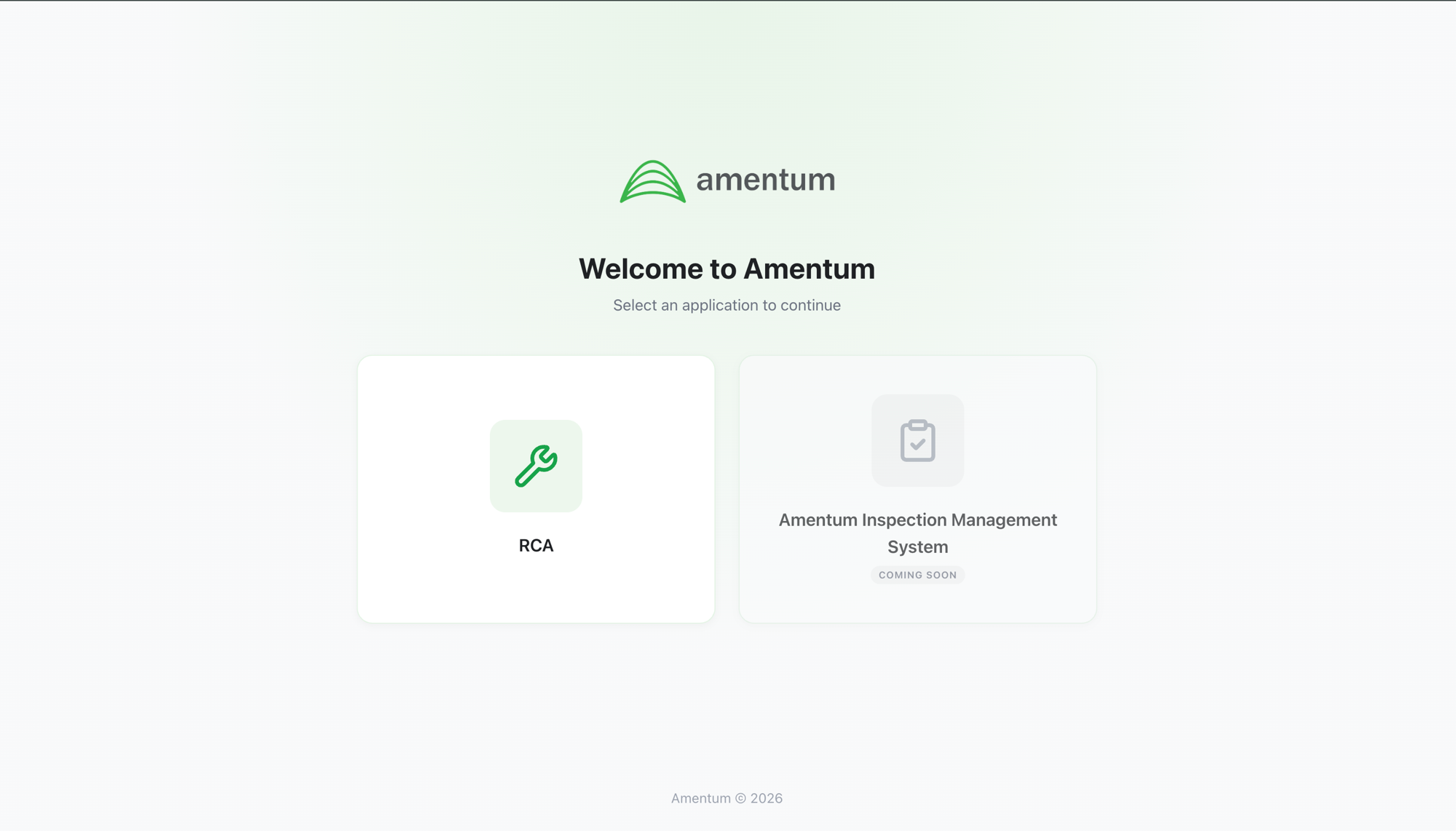
After signing in, you arrive at the App Suite landing page — your starting point for RCA. From here you can open the RCA dashboard and see the analyses you're involved in.
What's next
- Learn how a root-cause analysis moves through its stages — investigation, review, approval, corrective actions, and completion.
Troubleshooting
| Problem | What to do |
|---|---|
| The activation link says the invitation is invalid or expired | Ask your administrator to resend the invitation. |
| "You do not have access to this application" after signing in | Your invitation may not have been accepted yet, or app access wasn't confirmed. Check your email for the activation link, or contact your administrator. |
| "Your account has been deactivated" | Your account is inactive. Contact your administrator to reactivate it. |
| The Okta Verify prompt never arrives | Make sure Okta Verify is installed and set up on your phone, and that you have a connection. |