Appearance
Browsing action items
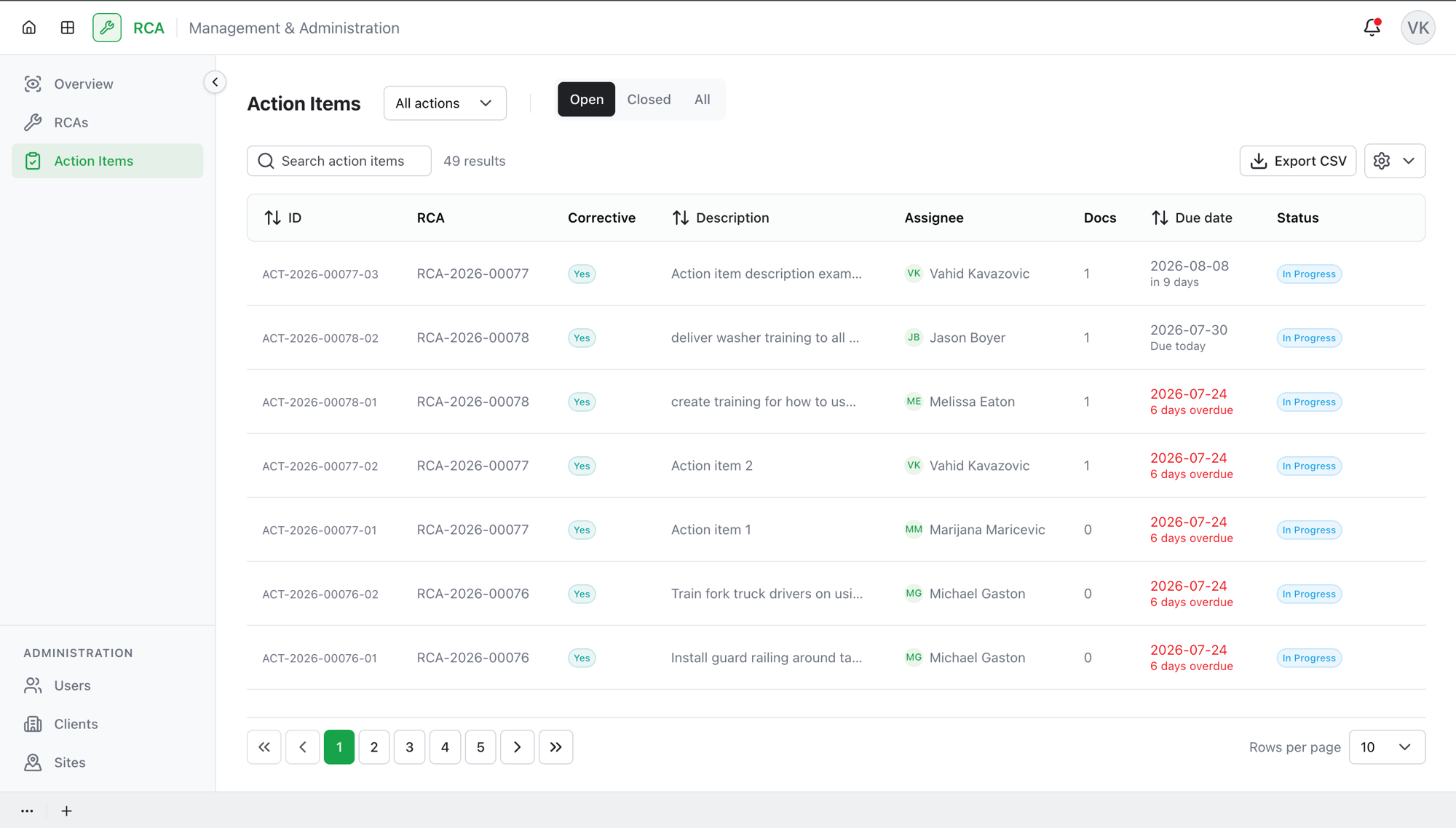
The Action Items page is a single list of every corrective and non-corrective action across all your RCAs. It's the place to track what's outstanding, what's overdue, and what's done — without opening each RCA one at a time.
For how an individual action item is created, worked, and approved, see Action items. This page is about finding and tracking them in bulk.
Finding action items
- Search — type in the search box to find action items across your RCAs.
- Open / Closed / All tabs — switch between action items still in progress (Open), finished ones (Closed), or All of them.
- Type filter — narrow the list to All actions, Corrective, or Non-corrective.
The columns
Each row is one action item. Depending on the tab you're viewing, the table can show:
| Column | What it shows |
|---|---|
| ID | The action item's identifier. |
| RCA | The RCA the action item belongs to. |
| Type | Corrective or non-corrective. |
| Description | What the action is. |
| Assignee | The person responsible for it. |
| Documents | How many supporting documents are attached. |
| Due date | When it's due (shown on the Open tab). |
| Completed date | When it was completed (shown on the Closed tab). |
| Status | The action item's current status (see below). |
You can show or hide columns with the column-visibility control, and change how many rows appear per page.
Action item statuses
| Status | Meaning | Group |
|---|---|---|
| In Progress | The assignee is working on it. | Open |
| Pending Approval | Submitted, waiting for the owner to approve or reject. | Open |
| Completed | Approved and done. | Closed |
| Rejected | Sent back by the owner. | Closed |
| Cancelled | Cancelled and no longer active. | Closed |
The Open tab shows In Progress and Pending Approval; the Closed tab shows Completed, Rejected, and Cancelled.
Exporting
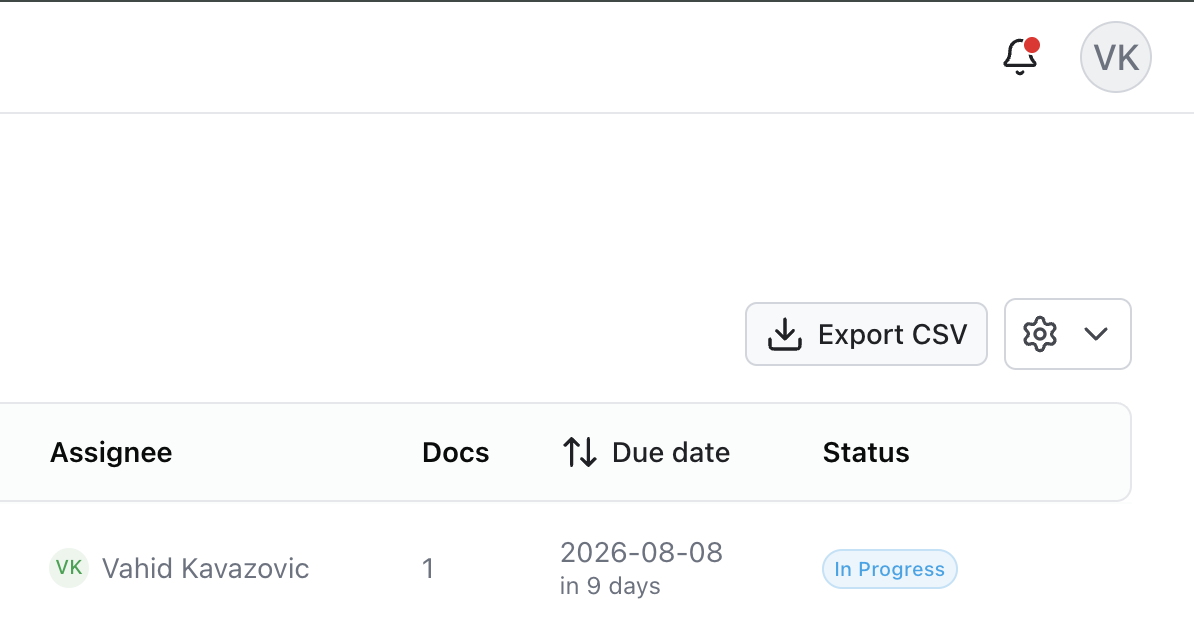
Select Export CSV to download the current list — with the filters and tab you have applied — as a spreadsheet. This is handy for reporting on outstanding or completed corrective work.
Working from the list
- Open an action item — select a row to open its detail, where you can add notes, documents, and take workflow actions.
- Edit — edit an action item from its row.
- Cancel — cancel an action item from its row.
- Submit / Approve / Reject — the same workflow actions available inside an RCA are available from the detail view here.
What's next
- How action items work — creating, assigning, submitting, and approving.
- Browse the RCA list to work from the RCA side instead.
Troubleshooting
| Problem | What to do |
|---|---|
| An action item you expect isn't listed | Check the tab — a finished item is under Closed, not Open. Also clear the Type filter, which may be hiding it. |
| The Due date column is missing | Due date shows on the Open tab; the Closed tab shows Completed date instead. |
| Your CSV export is missing rows | Export uses your current filters and tab. Switch to the All tab and clear the Type filter to export everything. |
| You can't approve or reject an item | Approve and reject are owner actions — open the item's detail; the buttons appear only when the item is awaiting your decision. |