
Appearance
Site management
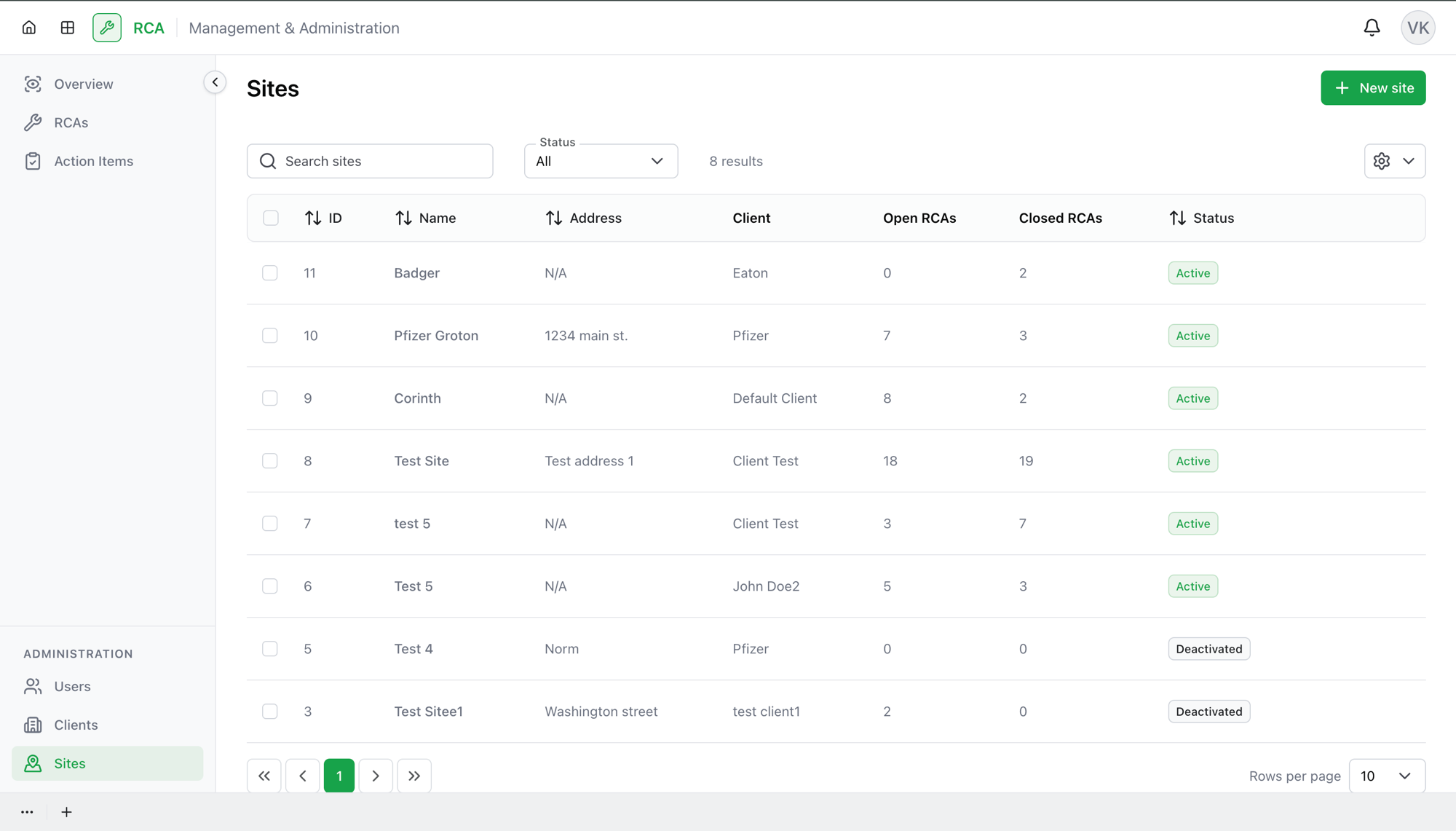
Sites are the physical locations RCAs are raised against. Each site belongs to a client, and every RCA is tied to a site. The Sites page is where administrators create and manage them.
Administrators only
Site management is available to administrators only.
Creating a site
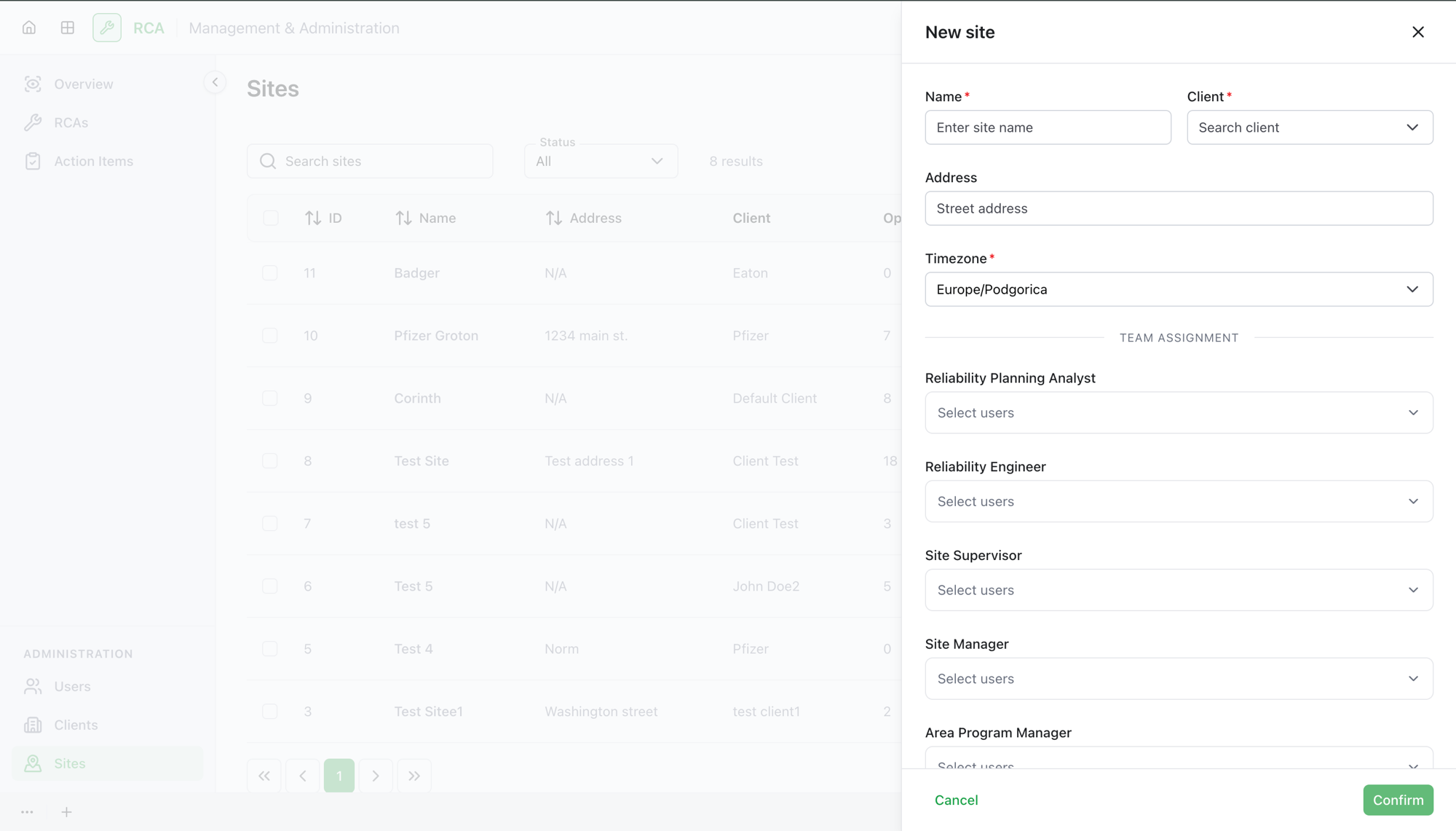
Select New site and fill in the form. A site has more to it than a client, organized into sections:
| Section | What it holds |
|---|---|
| Name & Client | The site Name and the Client it belongs to — both required. |
| Address | Address line 1 and 2, city, state/province, postal code, and country. |
| Timezone | The site's timezone (defaults to your browser's). |
| Coordinates | Latitude and longitude, if you want the site placed on a map. |
| Contact Information | A contact name, email, and phone for the site. |
| Team Assignment | Assign users to the site by their position (see below). |
Only Name and Client are required; the rest are optional but useful.
Team assignment
Under Team Assignment you assign users to the site grouped by their position. This is how the right people are available for that site's RCAs — for example, its approvers. A user must be an active user with that position to appear in the list.
The columns
Each row is one site. The list can show:
| Column | What it shows |
|---|---|
| ID | The site's identifier. |
| Name | The site's name. |
| Address | The site's address. |
| Client | The client the site belongs to. |
| Open RCAs | How many open RCAs at the site. |
| Closed RCAs | How many closed RCAs at the site. |
| Status | Active or Deactivated. |
Search by name with the Search sites box, and filter by Status (All, Active, Deactivated).
Managing a site
Each site row has actions:
- View Details — open the site to see its information and RCAs.
- Edit — change any of the site's details, including its team assignment.
- Deactivate site — set the site to Deactivated; its record and history stay.
- Activate site — restore a deactivated site.
- Delete site — remove the site entirely.
Select multiple sites with the row checkboxes to Deactivate, Activate, or Delete them together — only actions that apply to every selected site are offered.
What's next
- Manage clients — the clients sites belong to.
- Create an RCA against a site.
Troubleshooting
| Problem | What to do |
|---|---|
| You don't see the Sites page | It's available to administrators only. |
| Confirm is disabled when creating a site | Name and Client are both required — fill both in. |
| A user isn't available to assign to the site | Team assignment lists active users who hold the relevant position. Check that the person is active and has that position set on their user record. |
| A site doesn't appear when creating an RCA | Check the site's Status — a deactivated site isn't available for new RCAs. |