
Appearance
Inviting users
New people get access to the RCA app by invitation. An administrator sends an invitation from the Users page; the recipient gets an email with an activation link and joins the app. This page covers sending invitations and tracking them on the Invitations tab.
Administrators only
Inviting and managing invitations is available to administrators only.
Sending an invitation
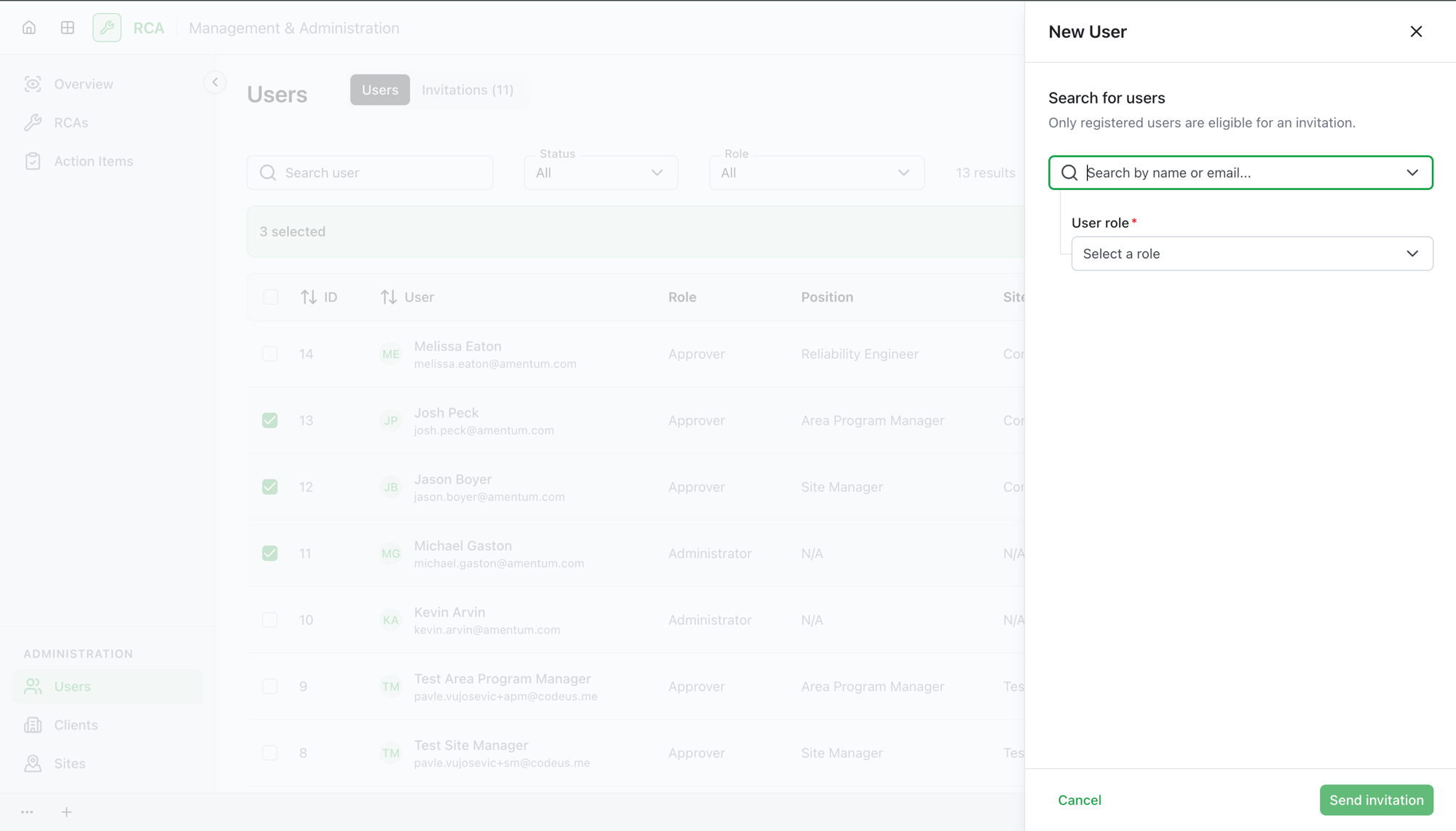
- On the Users page, select New User.
- Find the person. Search by name or email. Only registered users are eligible for an invitation — the search finds people your organization already has on record.
- Choose the role to give them. See Roles & permissions for what each role can do.
- If the role is Approver, also set their position (required) and the sites they cover.
- Select Send Invitation.
The person receives an invitation email with an activation link. When they follow it, their account is activated and they can sign in — see Getting started for the activation experience from the recipient's side.
Tracking invitations
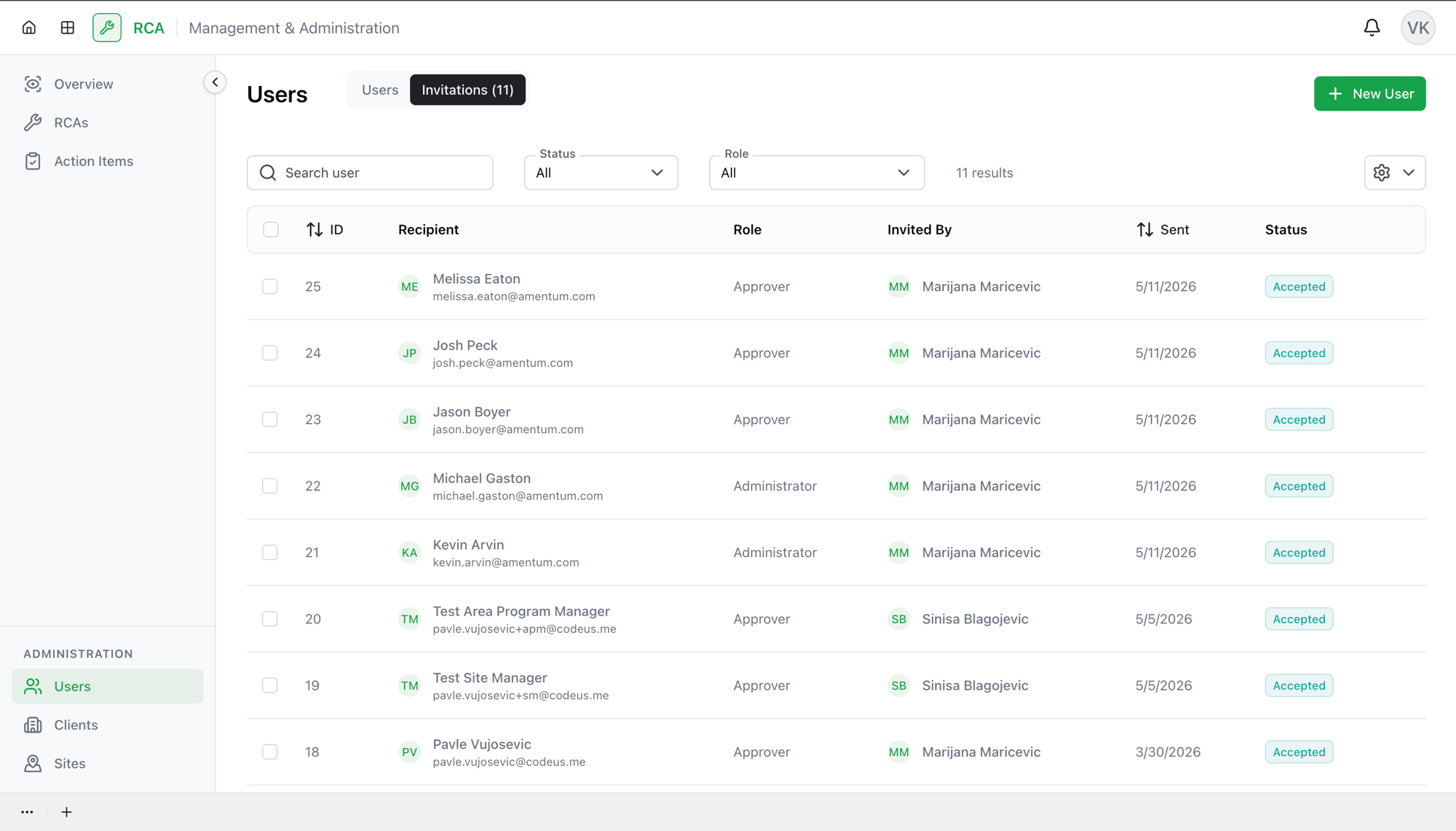
The Invitations tab lists everyone who's been invited but the tab count shows how many are outstanding. Each row shows:
| Column | What it shows |
|---|---|
| ID | The invitation's identifier. |
| Recipient | The invited email address. |
| Role | The role they were invited as. |
| Invited by | The administrator who sent it. |
| Sent | When the invitation was sent. |
| Status | Where the invitation stands (see below). |
You can search and filter by Status and Role, the same way as the Users tab.
Invitation statuses
| Status | Meaning |
|---|---|
| Invited | Sent, waiting for the person to accept. |
| Accepted | The person activated their account — they now appear on the Users tab. |
| Invitation declined | The person declined the invitation. |
| Invitation expired | The invitation lapsed before it was accepted. |
Resending and cancelling
- Resend Invitation — send the invitation email again. Available for any invitation that hasn't been accepted (useful when it expired or the person didn't receive it).
- Cancel & remove invitation — withdraw an invitation that hasn't been accepted, removing it from the list.
Once an invitation is Accepted, it can't be resent or cancelled — the person is a full user, so manage them from the Users tab instead.
What's next
- Manage existing users on the Users tab.
- Roles & permissions — decide which role to invite someone as.
Troubleshooting
| Problem | What to do |
|---|---|
| You can't find the person to invite | Only registered users can be invited. If they aren't on record yet, they need to be registered before they can be invited. |
| Send Invitation is disabled | Check the required fields — a role is always required, and the Approver role also requires a position. |
| The person didn't get the email | Use Resend Invitation on that row. If it lapsed, resending issues a fresh link. |
| An invitation shows Accepted but you want to change their role | Accepted invitations become users — change the role from the Users tab, not here. |