
Appearance
User management
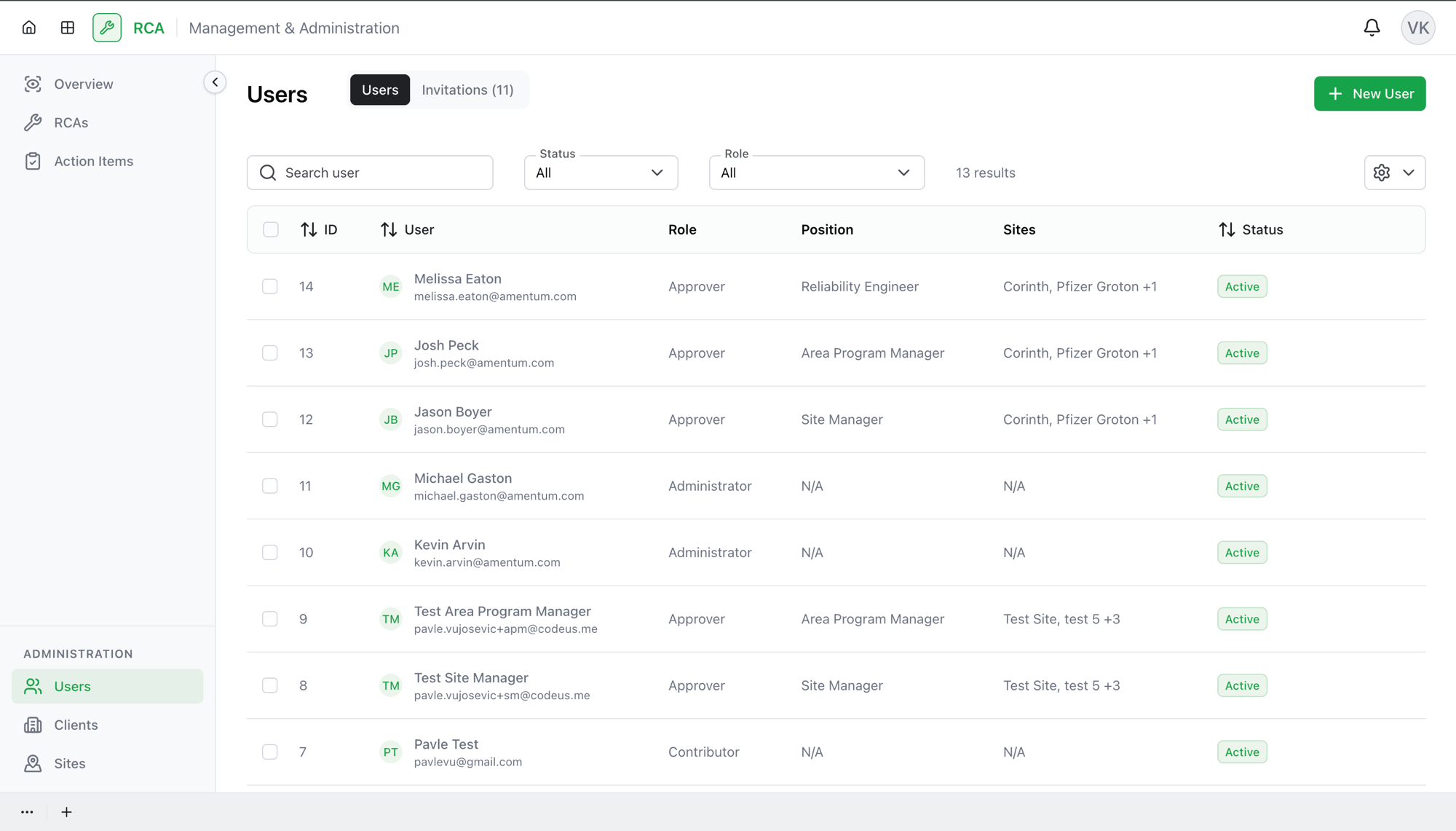
The Users page is where administrators manage who has access to the RCA app and what role each person holds. It has two tabs — Users (people with access) and Invitations (people who've been invited but haven't joined yet). This page covers the Users tab; see Inviting users for the invitation flow.
Administrators only
The Users page is available to administrators only.
Finding a user
- Search — type in the Search user box to find someone by name.
- Status filter — show All statuses, Active, or Inactive users.
- Role filter — show All roles or users with a specific role.
The columns
| Column | What it shows |
|---|---|
| ID | The user's identifier. |
| User | The person's name. |
| Role | The role (or roles) they hold. |
| Position | Their job position. |
| Sites | The sites they're associated with. |
| Status | Active or Inactive. |
You can show or hide columns with the column-visibility control, and change how many rows appear per page.
Managing a user
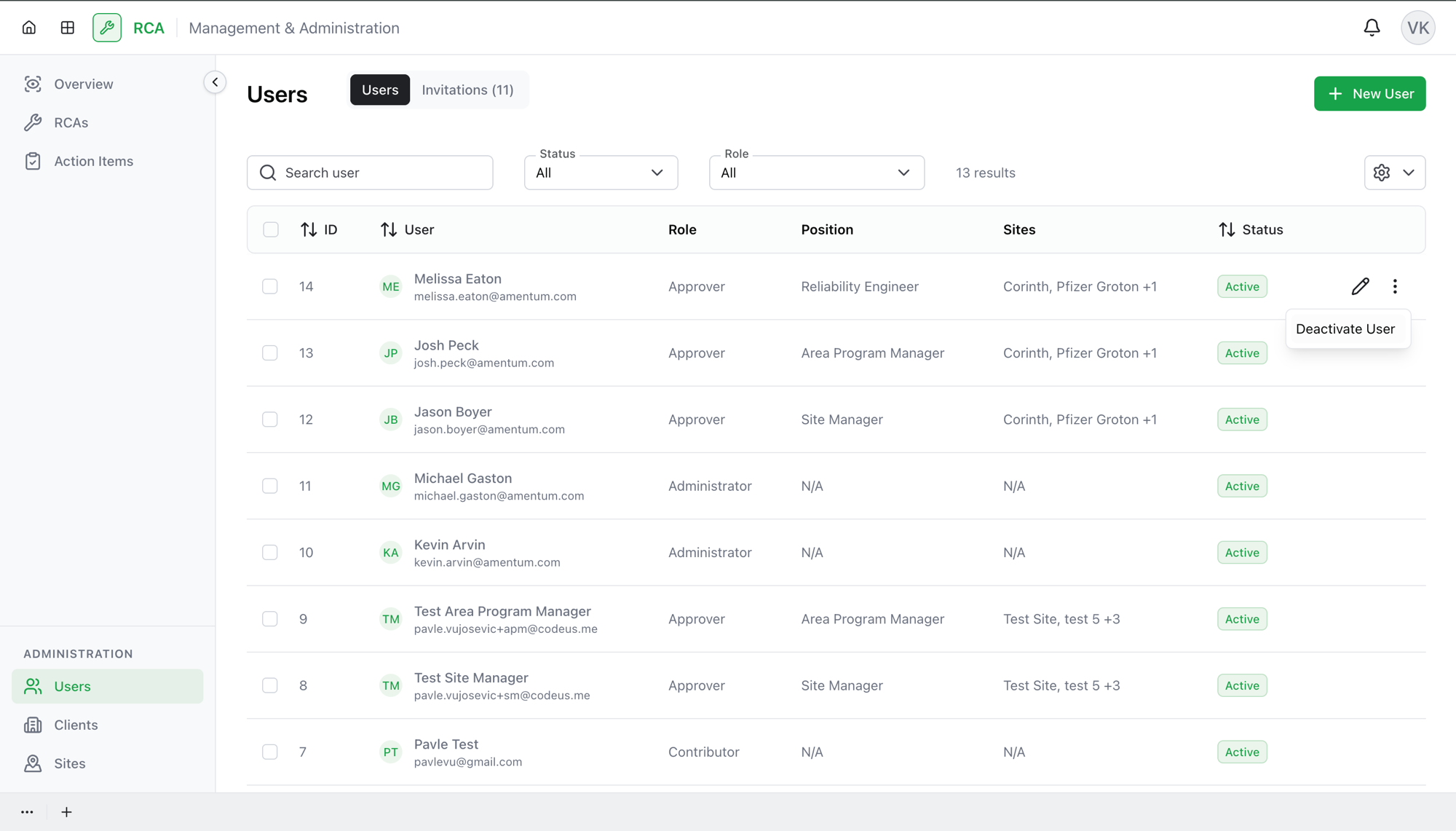
Each user row has actions:
- Edit user / Change role — open the user to change their role, position, and associated sites.
- Deactivate user — remove a user's access without deleting them. Their record stays, but they can't sign in. Their status becomes Inactive.
- Activate user — restore access to a deactivated user.
- Delete user — remove the user entirely.
Changing someone's role
- Open the user (Edit user / Change role).
- Choose the new role, and set the position and sites as needed.
- Save.
The change takes effect for that user's next actions. See Roles & permissions for what each role can do.
Doing several at once
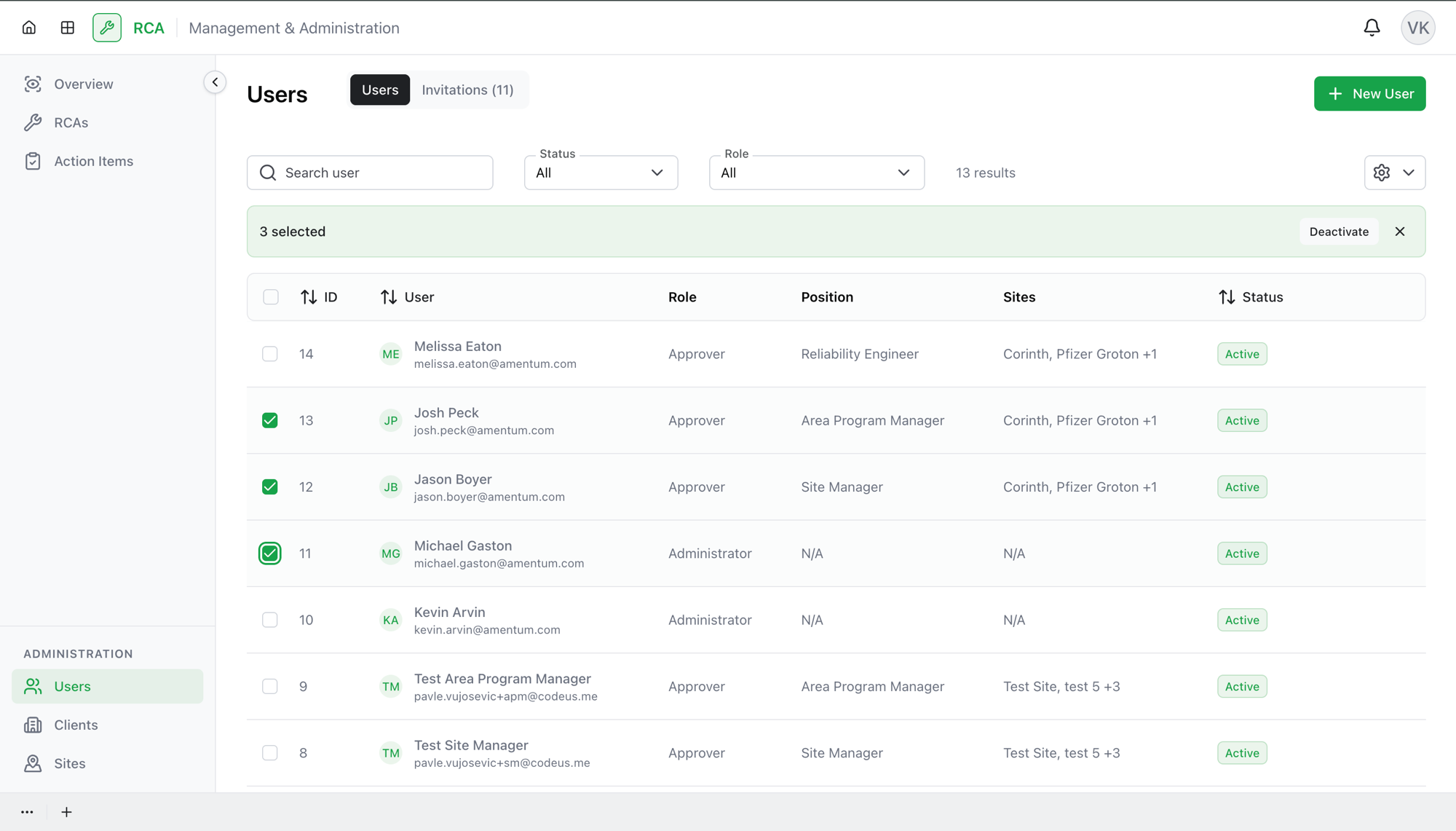
Select multiple users with the row checkboxes to act on them together — Deactivate, Activate, or Delete the whole selection in one step. Only actions that apply to every selected user are offered.
What's next
- Invite a new user from the Invitations tab.
- Roles & permissions — what each role can do.
Troubleshooting
| Problem | What to do |
|---|---|
| You don't see the Users page | It's available to administrators only. |
| A user can't sign in | Check their Status — if it's Inactive, they've been deactivated. Activate them to restore access. |
| A bulk action you expect isn't offered | Bulk actions only appear when they apply to every selected user. Narrow your selection (e.g. select only active users to deactivate). |
| You can't find someone | Clear the Status and Role filters — they combine with search and may be hiding the person. If they were invited but haven't joined, they're on the Invitations tab, not Users. |