
Appearance
Browsing the RCA list
The RCAs page is the main list of every root cause analysis you can see. From here you find an RCA, filter down to the ones you care about, open one to work on it, or start a new one.
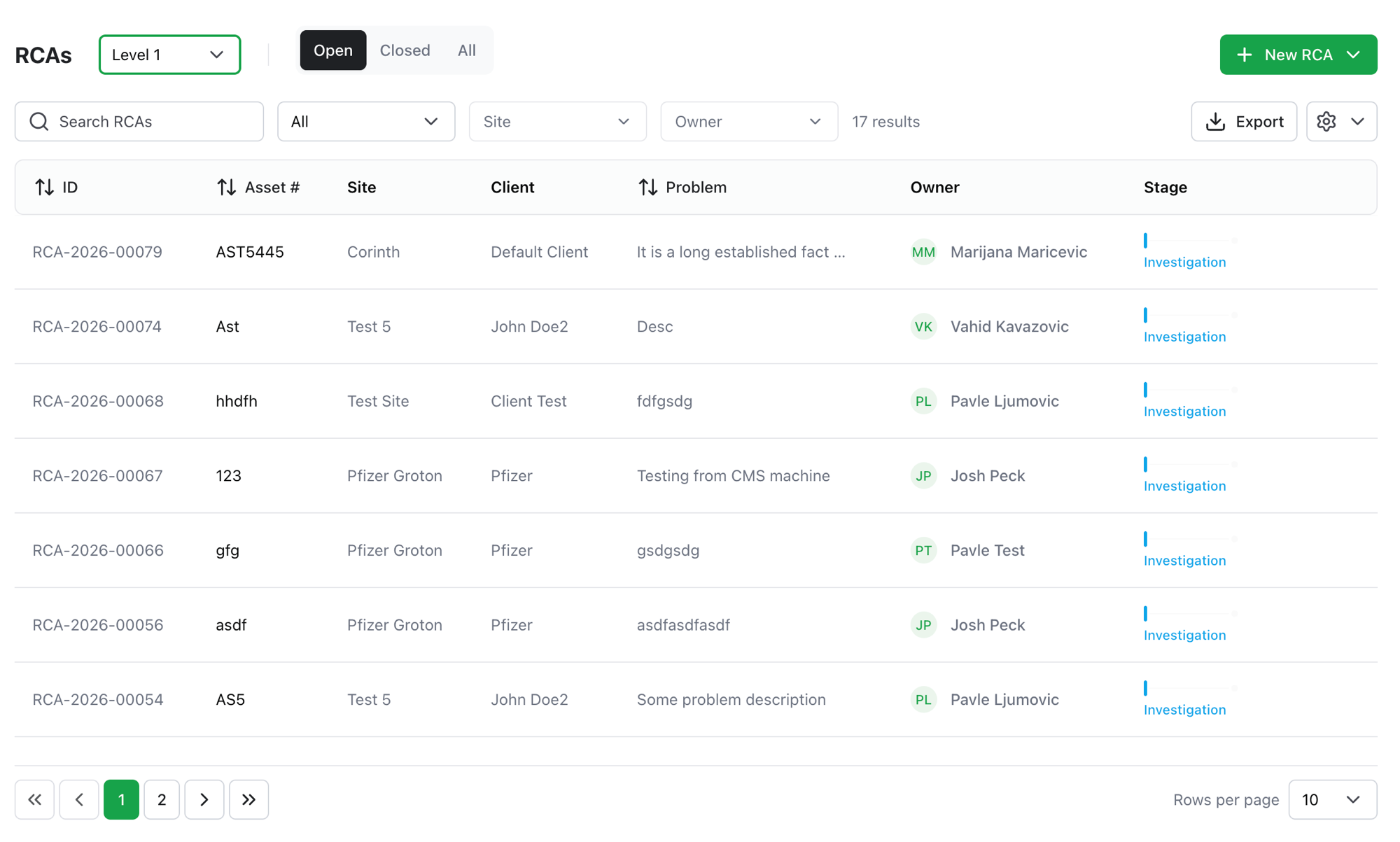
Finding an RCA
- Search — type in the Search projects box to search across RCAs.
- Open / Closed / All tabs — switch between RCAs still in progress (Open), finished ones (Closed), or All of them.
- Level — narrow the list to All RCAs, Level 1, or Level 2.
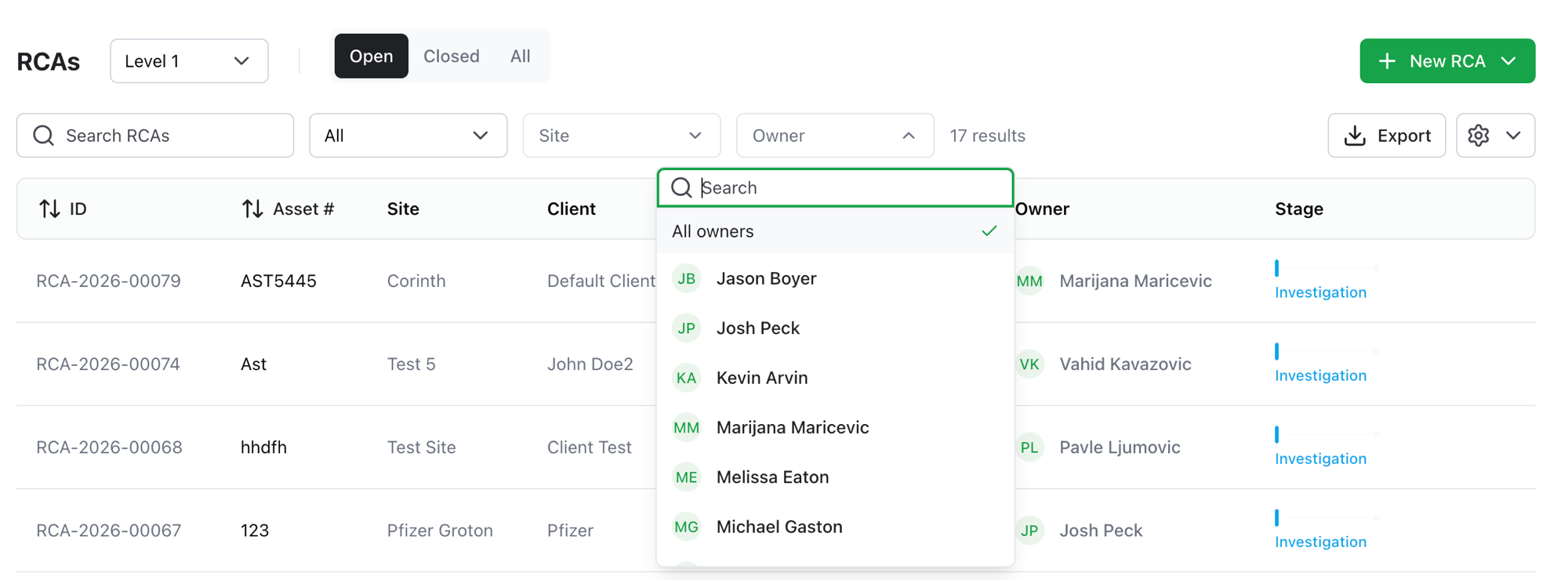
Filters
Three dropdown filters narrow the list further. They combine, so you can, for example, see only Level 2 RCAs at one site that are in the Formal Approval stage.
| Filter | What it does |
|---|---|
| Stage | Show only RCAs at a chosen stage (Investigation, Initial Review, Formal Approval, Corrective Actions, Final Review, Completed, Validated, Cancelled). Default: All stages. |
| Site | Show only RCAs for a chosen site. Default: All sites. |
| Owner | Show only RCAs owned by a chosen person. Default: All owners. |
The columns
Each row is one RCA. Depending on the tab and level you're viewing, the table can show:
| Column | What it shows |
|---|---|
| ID | The RCA's identifier. |
| Level | Level 1 or Level 2. |
| Asset # | The asset the RCA is about. |
| Model # | The asset's model number. |
| Site | The site the RCA belongs to. |
| Client | The client the site belongs to. |
| Problem | The problem description. |
| Owner | The RCA owner. |
| Project Role | Your role on that RCA. |
| Closed on | When the RCA was closed (Closed tab). |
| Last update | When the RCA last changed. |
| Stage | The current stage, shown as a status badge. |
You can show or hide columns with the column-visibility control, and change how many rows appear per page.
Working from the list
- Open an RCA — select a row to open its investigation, where you do the actual work.
- New RCA — select New RCA and choose Level 1 or Level 2 to create one.
- Edit — edit an RCA's details from its row action.
- Cancel / Reopen — administrators can cancel or reopen an RCA directly from its row.
What's next
- Create a Level 1 or Level 2 RCA.
- Understand RCA levels before starting a new one.
Troubleshooting
| Problem | What to do |
|---|---|
| An RCA you expect isn't in the list | Check the tab — a finished RCA is under Closed, not Open. Also clear the Stage, Site, and Owner filters, which combine and may be hiding it. |
| You can't find an RCA by searching | Search matches project details — try a different term, or clear the filters and browse by Site or Owner instead. |
| The stage column shows an unexpected status | The badge reflects the RCA's live stage. If it changed recently, the list updates on its next refresh. |
| You don't see Cancel or Reopen on a row | Those are administrator-only actions. |