
Appearance
Notifications
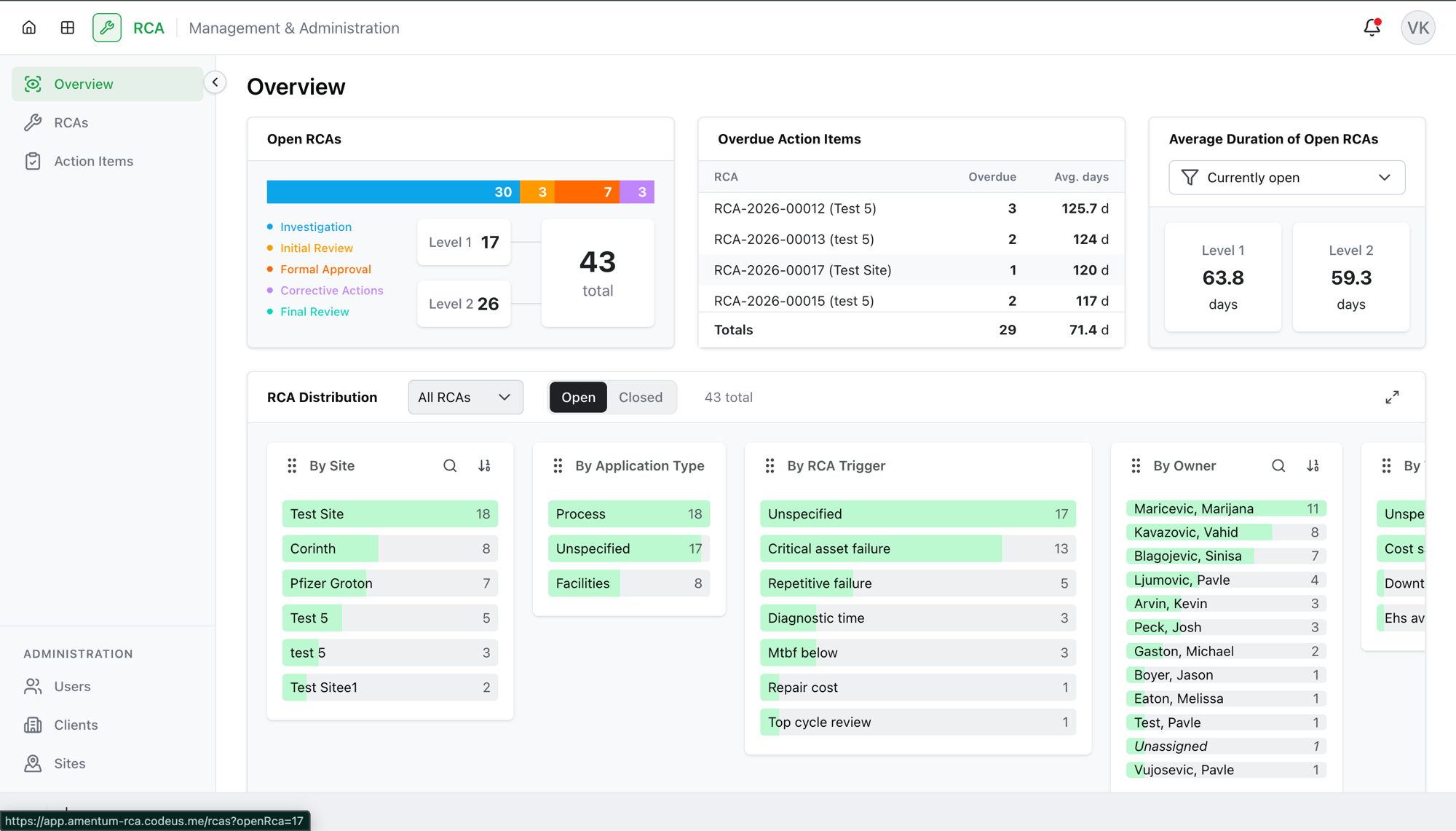
The app keeps you informed about the RCAs and action items you're involved in — when something needs your decision, and when things happen that you should know about. Notifications appear under the bell icon in the top bar.
Opening your notifications
Select the bell icon to open the notifications panel. A small badge on the bell shows how many unread notifications you have.
The two sections
Notifications are grouped by how much they need from you:
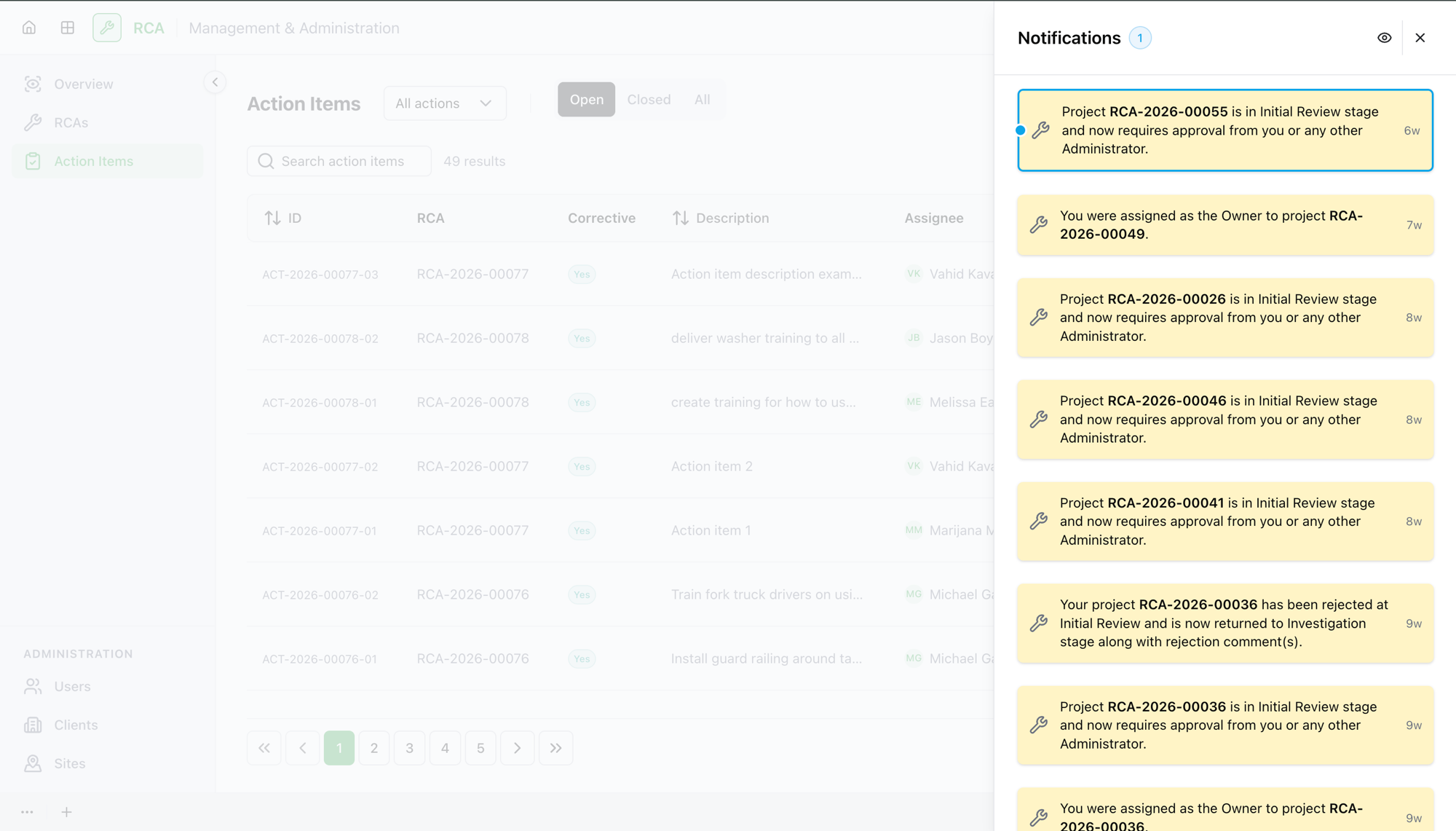
- Action Recommended — something is waiting on you: an RCA to review, an action item to approve, an approval it's your turn to give. These are highlighted so they stand out.
- Activity — things that happened that you should know about, but that don't need you to act — for example an RCA you own was approved or completed.
Acting on a notification
Select a notification to open exactly what it's about — the app takes you straight to the relevant RCA or action item and opens it, so you can act without hunting for it. Opening a notification also marks it as read.
Notifications cover the things you're part of, such as:
- An RCA has been submitted for your review or approval.
- An RCA you're involved in was rejected, reopened, cancelled, validated, or completed.
- An action item was assigned to you, submitted for your approval, or approved/rejected.
- A user invitation you sent was acted on.
Managing the list
| Control | What it does |
|---|---|
| Show unread only / Show all | Toggle between just the unread notifications and the full list. |
| Mark all as read | Clear the unread badge by marking everything read at once. |
| Load more | Load older notifications further down the list. |
Notifications you scroll past and leave visible are marked read automatically after a moment, so the unread count reflects what you've actually seen.
What's next
- The Overview dashboard — see your open RCAs and overdue action items at a glance.
- Browse action items to find everything assigned to you.
Troubleshooting
| Problem | What to do |
|---|---|
| The bell shows a count but the panel looks empty | Turn off Show unread only to see all notifications, or select Load more — the unread ones may be further down. |
| A notification didn't take you anywhere when selected | Some activity notifications are informational only and have nothing to open. The actionable ones (Action Recommended) always link to an RCA or action item. |
| The unread count seems wrong | Select Mark all as read to reset it, then reopen the panel. |
| You're not getting notifications you expect | You're notified about RCAs and action items you're involved in. If you expect one, check that you're assigned as owner, approver, or assignee on that RCA. |